Why We Built SlideSieve: Fixing the Broken Note-Taking Experience for Online Courses

The Friction We Couldn't Ignore
Taking an online course on DeepLearning.AI is genuinely hard work. The lectures are dense. Andrew Ng covers backpropagation, transformer architectures, and RLHF in 10-minute segments. The slides are the primary artifact — they contain the equations, diagrams, and definitions you need to review later.
DeepLearning.AI does not provide slide downloads for their Short Courses. This is a deliberate choice: the courses update frequently and maintaining slide PDFs alongside the video content is expensive. So you're left to capture them yourself.
The manual approach goes like this. The instructor says something important. You pause. You press Cmd + Shift + 4 on a Mac (or open Snipping Tool on Windows). You drag a selection box around the slide, carefully avoiding the video progress bar at the bottom and the instructor's webcam overlay in the corner. You switch to Obsidian or Notion, create a new block, paste the image, and add a caption. Then you go back to the video, hit play, rewind a few seconds because you missed what was being said, and try again.
For a 45-minute lecture with 35 slides, this process consumes 20–25 minutes of interruptions. You spend more time managing screenshots than absorbing the content. By the end, you're exhausted by the logistics, not the material.
What We Tried First
We looked for tools that solved this. None of them worked the way we needed.
Browser screenshot extensions still required manual clicking. You had to watch for slide changes yourself and click a button each time. Better than the OS shortcut, but still interrupts your focus on every slide.
Cloud AI video summarizers required uploading the video. Even if you can extract the video file from the network stream, uploading copyrighted course material to a third-party server creates a real legal risk. You're transmitting licensed content to a service you don't control, potentially in violation of the platform's Terms of Service, with no visibility into how that data is stored or used.
Screen recorders captured the full session as video, which you then had to scrub through manually to find each slide. Worse than screenshots in terms of time.
YouTube transcript tools don't apply to courses on learn.deeplearning.ai. The platform uses its own video player, not YouTube embeds.
None of these solved the actual problem: capturing every slide, automatically, without breaking your attention.
The Insight That Made SlideSieve Possible
The key realization was that the browser already has access to the video stream. Every HTML5 <video> element can be read frame-by-frame using the Canvas API. The video data doesn't need to go anywhere — the analysis can happen right there, in the tab, while the video plays.
This meant we could build an extension that watches the video alongside you, applies classification logic to each frame, and saves slides to local browser storage in real time. No upload. No server. No waiting.
The harder problem was making the classification accurate. A naive algorithm that captures any frame that looks different from the previous one would fill your panel with instructor webcam shots, dark transition screens, Jupyter notebook cells, and near-duplicate slides. We needed to filter all of those out reliably.
Building the Classification Pipeline
We spent the most time on the instructor detection problem. Early versions used color thresholds — if a frame had too many skin-toned pixels, skip it. This broke constantly. Course slides with peach-colored design elements triggered false vetoes. Courses filmed in brightly lit studios produced nearly white-wall backgrounds that confused the detector.
The solution was spatial: instead of counting skin-toned pixels, we look for the largest single connected blob of skin-toned pixels. A human face is one large blob. UI design circles and illustration characters are many small separate blobs. The blob size threshold is robust across different slide color palettes and different studio setups, because it's measuring shape structure, not color.
The Jupyter notebook problem required a different approach. Code editors and notebooks have rows of consistently formatted text that create synchronized horizontal luminance transitions. We scan three vertical columns and count where all three columns shift luminance simultaneously — a pattern that appears in code editors but not in presentation slides.
Deduplication required handling focus-pull blur. When a camera refocuses between cuts, the image briefly goes soft before sharpening. A pixel-difference comparison would flag this as a new slide — giving you a blurry duplicate alongside a sharp original. We binarize both frames at their average luminance before comparing, which forces blurred edges to commit to either text or background. The blur disappears from the comparison entirely.
We break down the mathematics behind this computer vision algorithm and our zero-cloud architecture in our technical guide on how SlideSieve works.
Why We Kept It Local
We considered the cloud architecture early on and ruled it out quickly.
Processing video in the cloud is expensive. Because cloud services pay for heavy server compute, they are forced to charge you recurring monthly subscriptions. We wanted to build a tool that you could buy once and own forever. By running the analysis locally on your own machine, we eliminated the server costs entirely—allowing us to offer SlideSieve as a simple one-time purchase instead of an endless monthly subscription.
More importantly, running everything locally means your course materials stay private. The videos you watch, the slides you capture — none of it leaves your browser. We don't know which courses you take, how many slides you save, or what your study schedule looks like. We can't know. The data never reaches us.
The tradeoff is that local JavaScript classification is less capable than a server-side vision model. We can't do OCR or generate text summaries. But for the specific job of capturing visual slides, the local pipeline is accurate enough that the vast majority of users never need to manually delete a false positive.
What We Shipped
SlideSieve launched in June 2026. The floating toolbar appears automatically when you open a video course on DeepLearning.AI, Coursera, Udemy, or YouTube. Click Auto-Capture before pressing play, and the extension handles the rest.
The side panel shows your captures organized by course and lesson. Three view modes — grid, list, and presentation — let you review everything without switching apps. The Export button generates a PDF in your browser and downloads it directly, named after the course and lesson.
The free plan covers a generous budget of up to 50 total slide captures. The Pro lifetime license is a one-time $16.99 purchase that removes all limits. No subscription, ever.
It's the tool we built because we needed it ourselves. If you're taking courses on DeepLearning.AI or Coursera and spending time on manual screenshots, install it from the Chrome Web Store and try the free tier.
More Articles
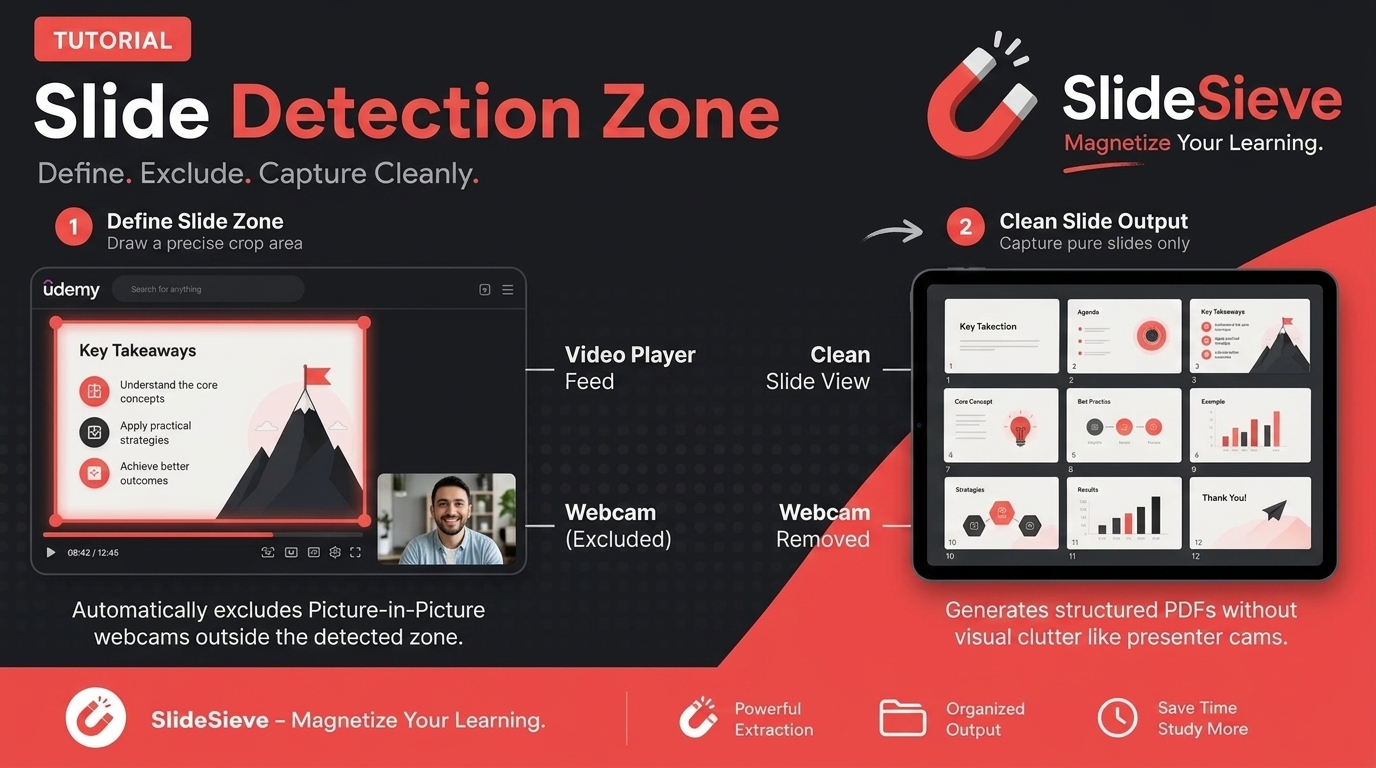
How to Capture Slides from Picture-in-Picture Webcam Courses
Learn how to use SlideSieve's Detection Zone to accurately capture presentation slides from courses that feature Picture-in-Picture instructor webcams.
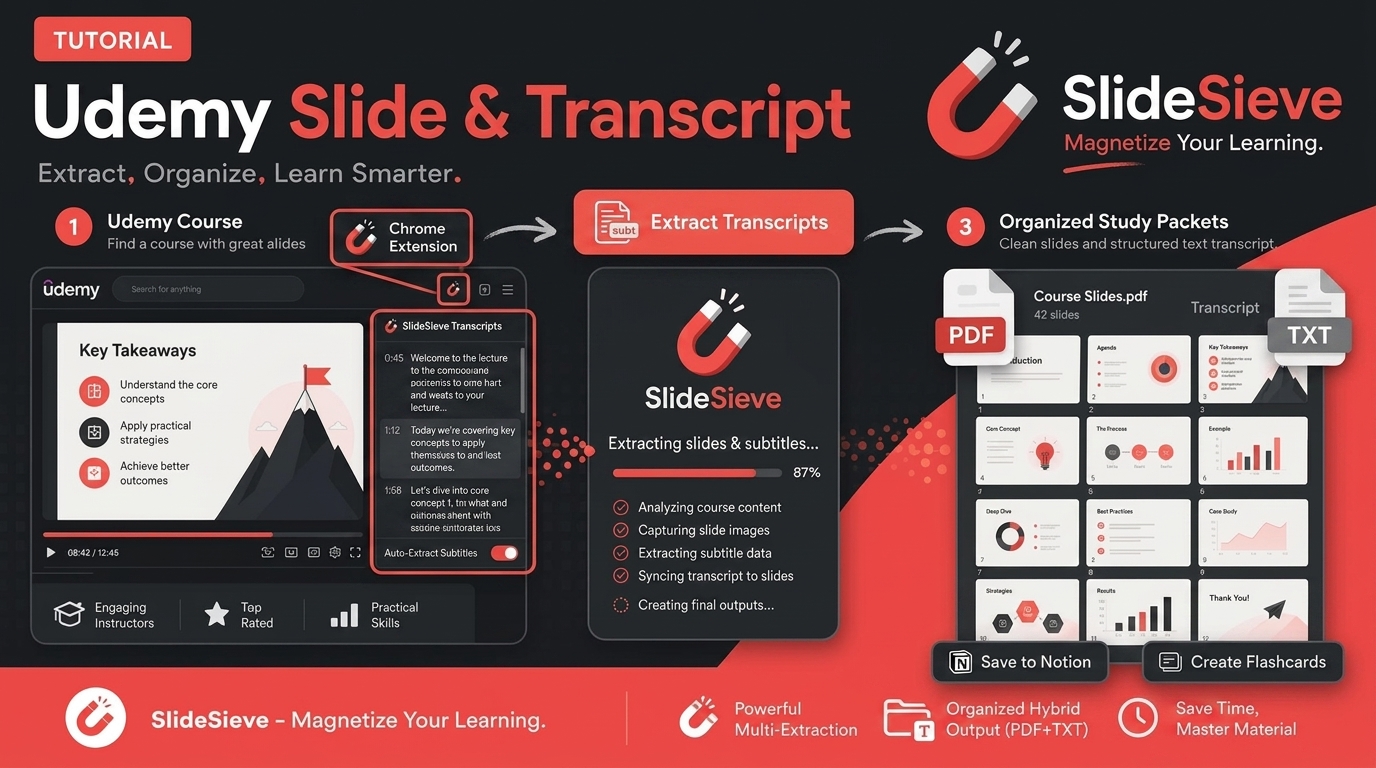
How to Save Course Transcripts with SlideSieve
Learn how to automatically extract and download transcripts from Coursera, Udemy, YouTube, and DeepLearning.AI videos using SlideSieve.

SlideSieve 1.1: Transcript Extraction, Slide Detection Zone, and 15 Languages
Announcing SlideSieve 1.1 with course transcript extraction, custom Slide Detection Zone for PiP webcam layouts, and support for 15 languages.