How to Capture Slides from Picture-in-Picture Webcam Courses
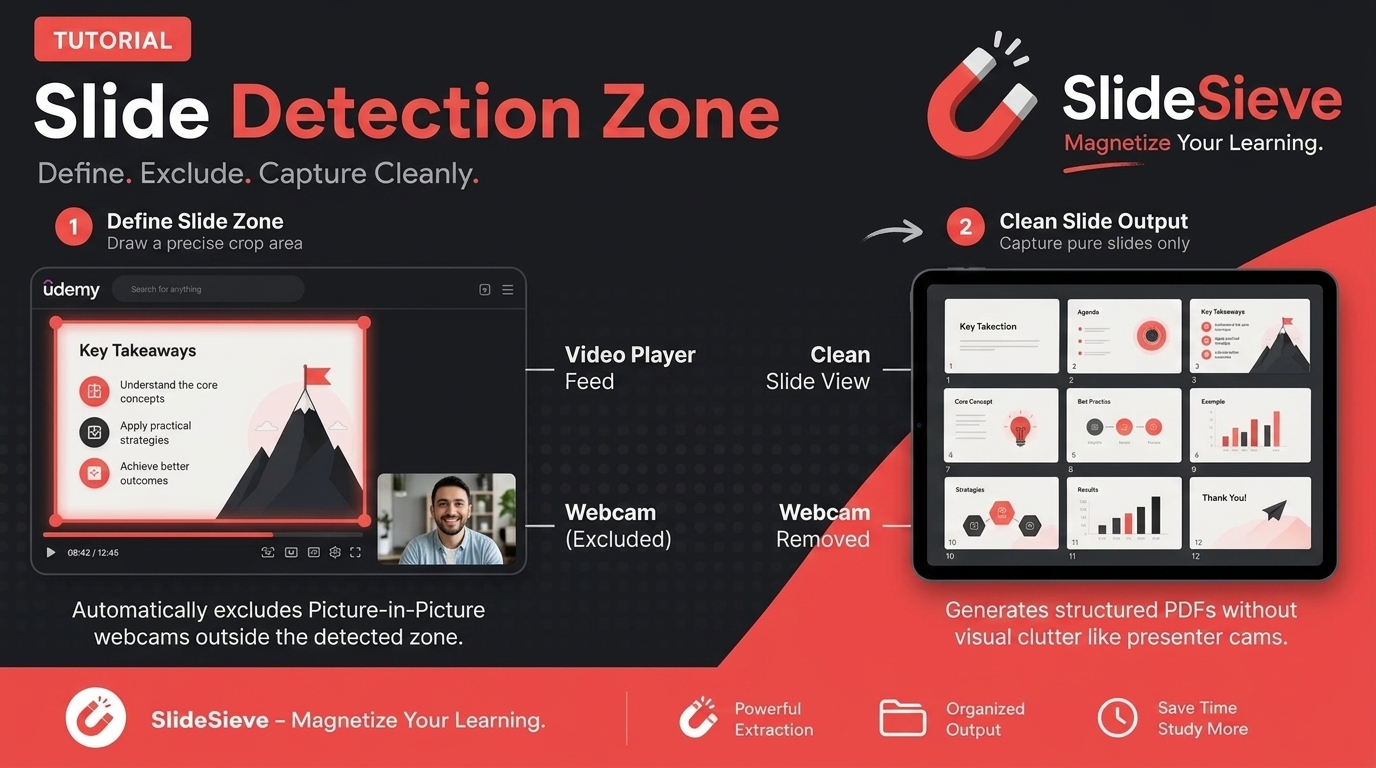
Picture-in-Picture (PiP) is one of the most popular formats for online education. In a PiP layout, a small webcam feed of the instructor floats in the corner of the screen, overlaid directly onto the presentation slides.
While this is great for engaging the audience, it can cause problems for automated slide capture tools. SlideSieve's AI is specifically trained to skip "talking-head" segments to ensure you only capture genuine slides. However, a persistent corner webcam can trick the AI into skipping good slide frames.
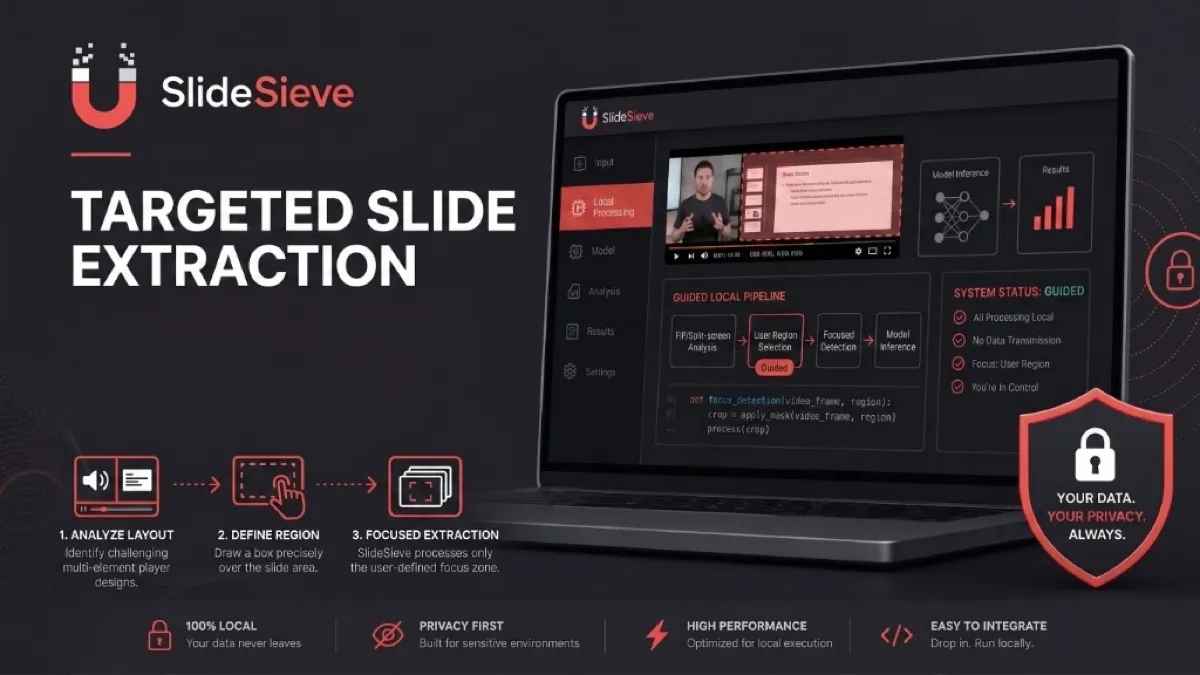
To solve this, SlideSieve 1.1 introduced the Slide Detection Zone. This guide shows you how to use it.
The Problem with PiP Webcams
SlideSieve uses spatial connected-component analysis to identify when a human face dominates the screen. If the instructor takes up a large portion of the video frame, SlideSieve automatically vetos the frame, knowing it's not a slide.
In a PiP layout, the instructor is much smaller, but their presence still triggers the AI's detection threshold. Because the PiP window's size and location change drastically from course to course, there is no single mathematical threshold that works for every video.
If we tune the AI to ignore all small webcams, it might accidentally capture full-screen talking-head frames on other courses.
The Solution: Draw Your Own Boundary
The Slide Detection Zone gives you manual control over the AI's vision. It comes with two distinct modes depending on your preference:
- Capture Zone: Draw a bounding box around the actual slide content. The AI will only analyze what's inside this box and ignore the rest of the video.
- Exclude Zone: Draw a bounding box directly over the instructor's webcam. The AI will analyze the whole video except for that specific box.
Step 1: Open the Video
Navigate to your online course (Coursera, Udemy, YouTube, or DeepLearning.AI) and play a video that features a PiP webcam layout.
Step 2: Pause the Video and Activate the Detection Zone Tool
First, pause the video on a frame that clearly shows the presentation slide and the instructor's PiP webcam.
Then, hover over the video to reveal the SlideSieve floating toolbar. Click the Detection Zone icon (it looks like a dashed square).
A darkened overlay will appear over the screen.
Step 3: Choose Your Mode and Draw
On the floating control bar, you can toggle between Capture Zone and Exclude Zone modes:
Option A: Capture Zone (Select the Slide)
Click and drag your mouse to draw a rectangle over the presentation slide area, ensuring the instructor's PiP webcam window remains completely outside of the rectangle.
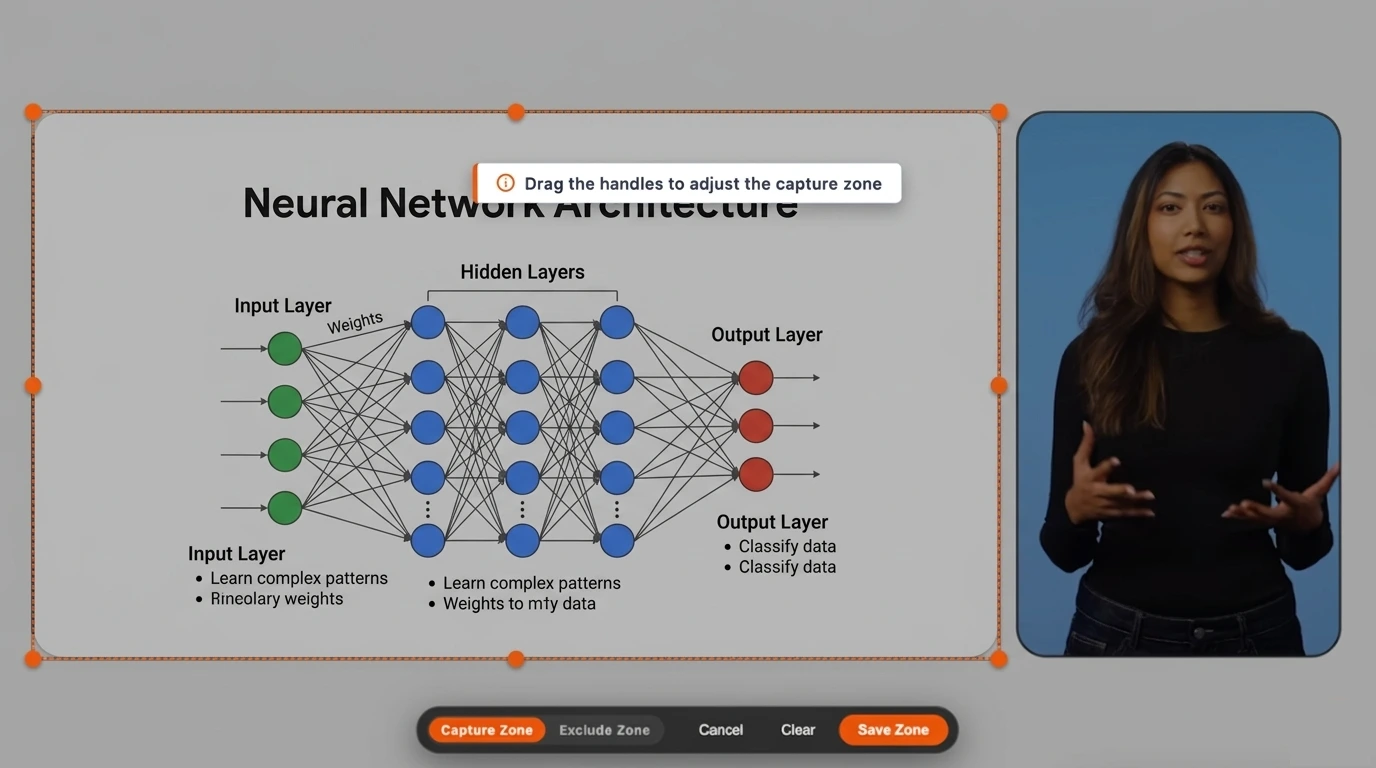
Option B: Exclude Zone (Mask the Webcam)
Click and drag your mouse to draw a rectangle directly over the instructor's PiP webcam window, covering it completely with a red exclusion mask so the AI ignores it.
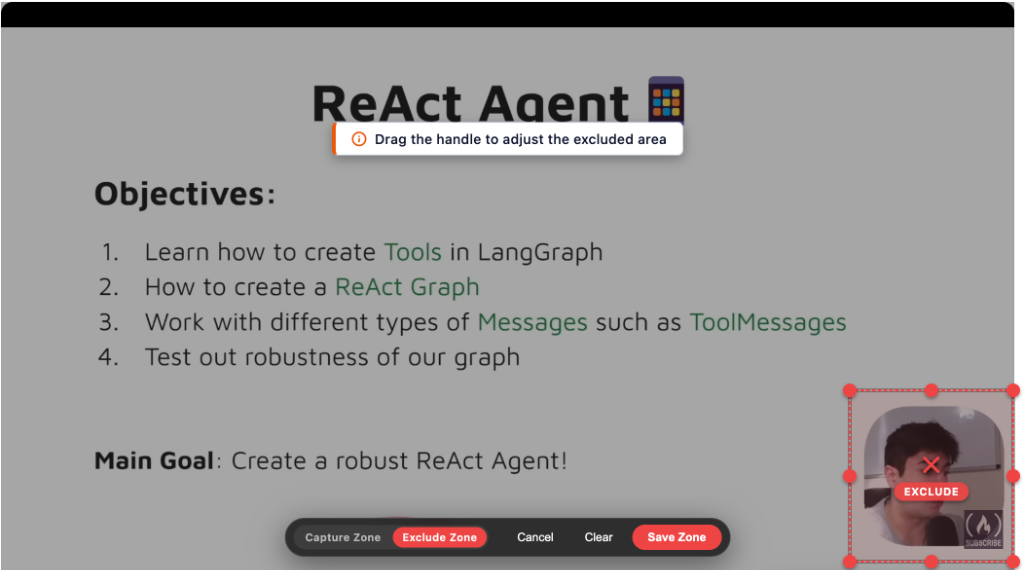
Step 4: Save the Zone
Click the Save Zone button that appears next to your drawn boundary.
That's it! From this point forward, SlideSieve will respect your boundaries. If you used the Exclude Zone, the PiP camera sits behind a blind spot. It never enters the analysis pipeline, and your slides are captured flawlessly.
Saved Per Course
You don't need to draw the boundary for every single video. When you save a Slide Detection Zone, SlideSieve stores it in your browser's local storage and maps it to that specific course.
If you move to Lesson 2, the boundary remains active. It will automatically apply to every video in that course, ensuring a seamless, hands-off capture experience.
More Articles
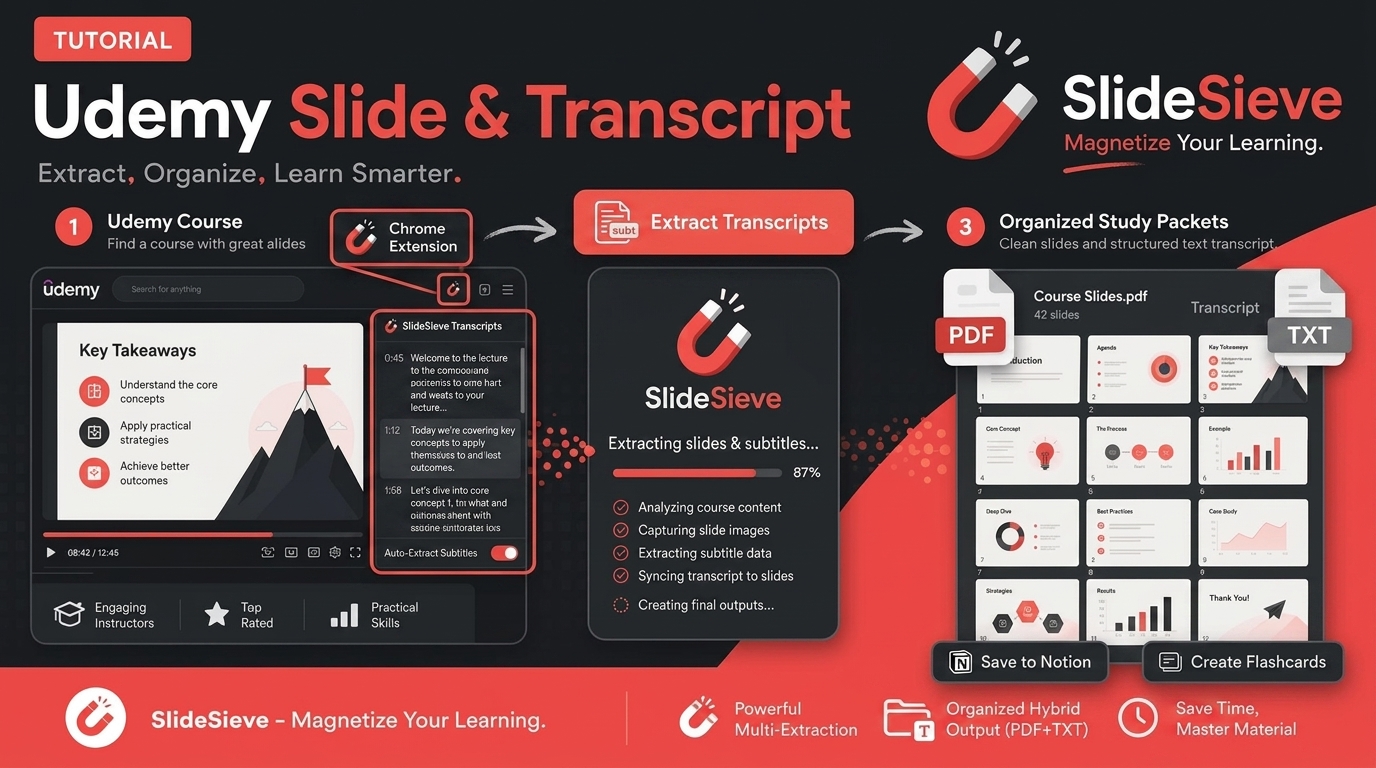
How to Save Course Transcripts with SlideSieve
Learn how to automatically extract and download transcripts from Coursera, Udemy, YouTube, and DeepLearning.AI videos using SlideSieve.
SlideSieve 1.1: Transcript Extraction, Slide Detection Zone, and 15 Languages
Announcing SlideSieve 1.1 with course transcript extraction, custom Slide Detection Zone for PiP webcam layouts, and support for 15 languages.

Local Browser Extraction vs. Cloud Upload Services: Which is Better for Extracting Slides?
A deep dive into why local, browser-based slide extraction is safer, faster, and more cost-effective than cloud-based video summarizers.