Auto-Capture DeepLearning.AI Slides into Clean PDFs
SlideSieve is a browser extension for Chrome and Edge built from day one for the DeepLearning.AI platform. It uses logo detection to identify branded slides, automatically skips Jupyter notebook frames, extracts the lesson transcript, and exports your captured slides as a clean, organized PDF.
 Microsoft Edge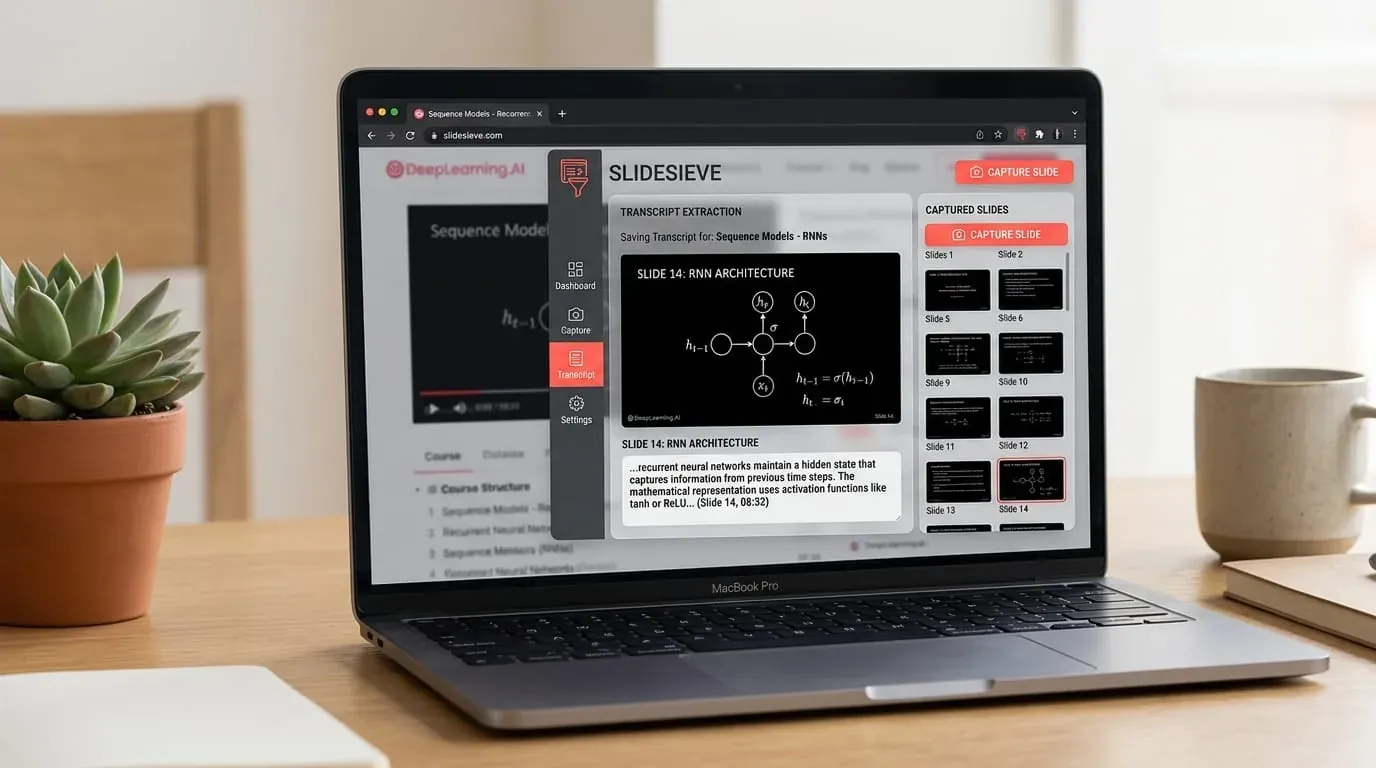
DLAI
Specially optimized
0
Jupyter frames captured
High precision
Slide detection
Free
Basic tier included
Why use SlideSieve for DeepLearning.AI?
Tailored detection algorithms designed specifically for DeepLearning.AI lecture video layouts and study workflows.
Specially optimized for the DeepLearning.AI platform
SlideSieve was originally built for DeepLearning.AI. It recognizes the platform's video player, shadow DOM structure, and branded slide format — giving it higher accuracy on DLAI courses than any generic screenshot tool.
Logo detection for branded slides
SlideSieve uses a topological connected-component analysis to detect the DeepLearning.AI red logo in each frame. This ensures slide frames with the DLAI brand are always captured, even in courses with embedded coding notebooks.
Jupyter notebook frames are automatically skipped
Many DeepLearning.AI courses embed Jupyter notebooks directly in the video. SlideSieve's code-frame veto filter (horizontal line density analysis) detects and skips these coding frames — you capture slides, not notebook screenshots.
Works on all Andrew Ng specializations and short courses
SlideSieve supports the full DeepLearning.AI catalog: Machine Learning Specialization, Deep Learning Specialization, MLOps Specialization, Natural Language Processing, and all short courses on learn.deeplearning.ai.
Handles courses that mix slides and code demos
Some DLAI lessons alternate between presentation slides and live coding environments. SlideSieve correctly captures only the presentation segments and ignores the coding demo sections.
Organizes slides by course and lesson
Captured slides are stored and exported grouped by DeepLearning.AI course and lesson name — so your Andrew Ng course notes stay organized across an entire Specialization.
Free to start — no subscription ever
The free plan lets you capture up to 50 slides in total. Pro is a one-time $16.99 lifetime purchase that removes all limits. No recurring subscription.
Full Course Transcript Support
Save the full lesson transcript automatically as you capture slides. Export both slides and transcript to create the ultimate study guide for complex AI concepts.
How to Save Lecture Slides as a PDF
Extract slides and transcripts in a few simple steps.
Install Extension
Add the SlideSieve Chrome extension to your browser. The tool runs alongside your video player.

Open Video Lecture
Navigate to a supported course platform and open a lecture video. The SlideSieve toolbar appears below the video player.
Set Detection Zone (Optional)
If your course has a persistent instructor webcam (Picture-in-Picture) over the slides, draw a Slide Detection Zone over the slide area to ignore the camera.
Capture Slides
Click Start Auto-Capture, then play the video. The extension analyzes the frames and extracts presentation slides. It captures presentation slides and diagrams, and skips instructor-only shots and transitions. For code walkthroughs, press Manual Snap (Ctrl+Shift+9).
Review Captured Slides
Access your saved slides in the side panel. View them in a grid, list, or presentation view, and delete any unwanted frames.
Export PDF & Transcripts
Generate a PDF document of your slides and optionally export the full course transcript. Read or print your study guide offline.
Simple, Honest Pricing
Start for free. Pick a plan that fits your schedule — own it forever, or grab 3 months for a course sprint.
No credit card required
- DeepLearning.AI, Coursera, Udemy, YouTube, etc.
- Auto slide detection, deduplication & instructor filtering
- Up to 50 slides captured globally
- Slide Detection & Exclude Zones included
- PiP Webcam Magic Eraser
- 3 free transcript extraction trials
- Export free slides to PDF
- Grid, List & Slideshow views
- Multi-language interface (15 languages)
- Unlimited Slide Captures (Pro)
- Unlimited Course Transcripts (Pro)
- Unlimited PDF Exports (Pro)
Expires 90 days after purchase (~$2.33/mo)
- Everything in Free
- Unlimited slides per lesson
- Unlimited PDF Exports
- Slide Detection Zone & PiP Magic Eraser
- Course transcripts (TXT, SRT, VTT)
- Multi-format export (PDF & images)
- Priority support
- Valid for 90 days from purchase
Secure checkout · Instant license key delivery
Launch discount — 32% off. Pay once, use forever.
- Everything in Free
- Unlimited slides per lesson
- Unlimited PDF Exports
- Slide Detection Zone & PiP Magic Eraser
- Course transcripts (TXT, SRT, VTT)
- Multi-format export (PDF & images)
- Priority support
- All future Pro features
Secure checkout · Instant license key delivery
Already have a license key? Open the SlideSieve side panel → Settings → Pro License to activate.
Frequently Asked Questions
Common questions about using SlideSieve with DeepLearning.AI
SlideSieve is an independent tool not affiliated with DeepLearning.AI. Captured slides are for personal study only. Please respect course content copyrights.
Stop screenshotting DeepLearning.AI slides.
Install in 60 seconds. Watch your lecture. Get a clean PDF — automatically.
Microsoft EdgeFree plan available · No credit card required · 100% private