How to Save Coursera Lecture Slides as a PDF (2026 Guide)
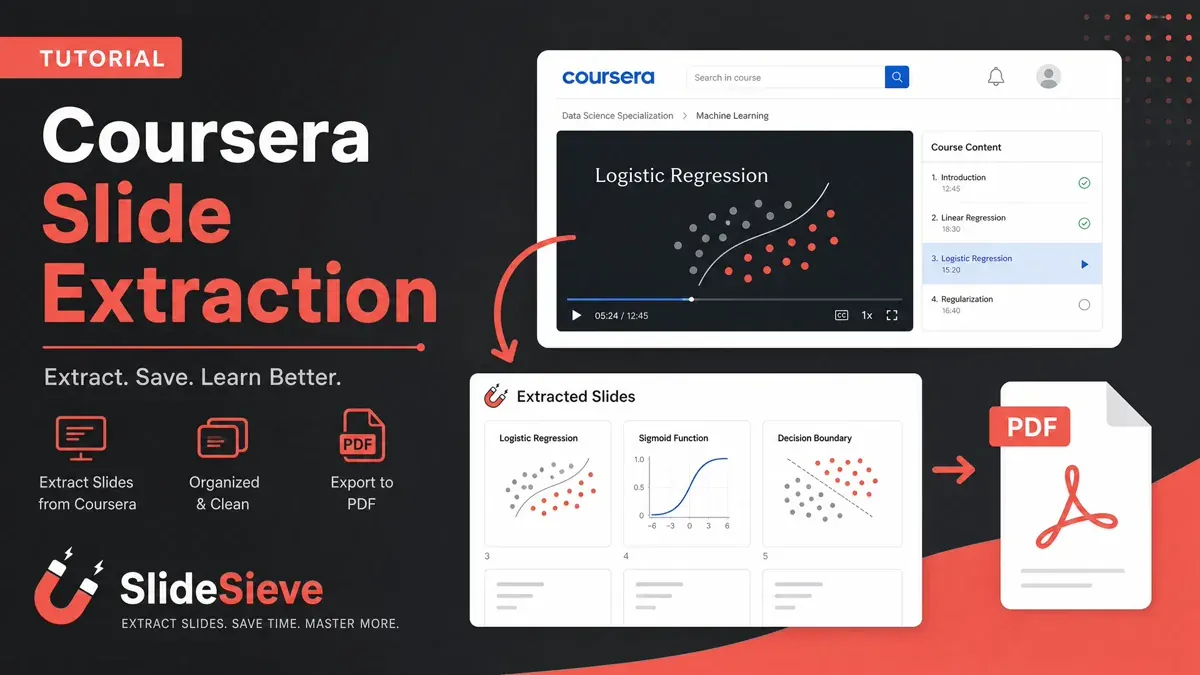
Direct Answer: Open any Coursera lecture in Chrome or Edge, click Start Auto Capture on the floating toolbar directly below the video player, and press play. SlideSieve automatically detects slide changes, skips instructor webcam cutaways, removes near-duplicate builds, and exports everything into a clean multi-page PDF — completely on-device with zero video uploads.
The Challenge of Note-Taking on Coursera
Coursera offers some of the best academic content on the web, with lectures from top universities and tech leaders. However, instructors rarely provide raw presentation files (PowerPoint or Keynote) for download. If you want to keep the slides for review, you're usually forced to take manual screenshots throughout the lecture — pausing, cropping, saving files, and constantly losing focus.
SlideSieve eliminates this manual effort. It runs silently inside your Chrome or Edge browser while you watch, automatically detecting and capturing only genuine presentation slides — filtering out instructor webcam frames, dark transitions, and redundant duplicates.
Step-by-Step Guide
1. Install SlideSieve
Install the free SlideSieve Chrome Extension or Microsoft Edge Add-on. Pin it to your browser toolbar for quick access to your side panel.
2. Open Your Coursera Lecture
Navigate to your Coursera dashboard and open any video lecture containing slides. SlideSieve automatically detects that you are on Coursera and displays a lightweight floating toolbar directly below the video player.
3. Click Start Auto-Capture
Before pressing play, click Start Auto Capture on the floating toolbar. SlideSieve automatically detects the Coursera course title and lesson name, organizing your slides chronologically from the very first frame.
4. Watch the Lecture at Your Own Speed
Play the lecture normally (at 1x, 1.25x, 1.5x, or 2x speed). As the video plays, SlideSieve analyzes the video stream frame-by-frame. It automatically ignores frames where the instructor's face dominates the camera, ignores black transition screens, and skips code editors or terminals.
When a slide introduces bullet points progressively, SlideSieve's structural diff algorithm captures each new bullet stage without creating clutter or duplicate frames.
5. Review Captured Slides in Real Time
Open the SlideSieve side panel to review captured slides in real time. Switch between Grid View and List View, and click the × icon on any slide thumbnail to delete unwanted frames before exporting.
6. Export Your Slides to PDF
Click Export to generate a clean, high-resolution PDF document preserving the original aspect ratio of the course presentation. You can also export as individual high-res PNG images or extract the synced lesson transcript as a TXT, SRT, or VTT file.
Pro Tips for Coursera
- Click capture before pressing play: Clicking "Start Auto Capture" before starting playback ensures SlideSieve captures introductory slides from second zero.
- Use Manual Snap for whiteboard drawings: Press
Ctrl + Shift + 9(orControl + Shift + 9on Mac) to instantly snapshot diagrams or handwritten notes that auto-detection might skip. - Works on all Coursera tiers: Compatible with Coursera Plus, free audit enrollments, Specializations, Professional Certificates, and Coursera for Business accounts.
- Permanent local storage: Captured slides and transcripts are stored securely in your browser's local IndexedDB and persist across browser restarts until you delete them.
Frequently Asked Questions
Can I save slides if the Coursera course has no download button? Yes. SlideSieve captures slides directly from the video player as you watch. Even if the instructor provides no PDF downloads or external resources, SlideSieve extracts every real slide into a single clean PDF deck.
Does SlideSieve work on free Coursera audit courses? Yes. As long as the Coursera lecture video plays in your Chrome or Edge browser, SlideSieve works across all free audit courses, Specializations, and Professional Certificates.
Does SlideSieve upload my Coursera videos to a server? No. Video analysis and slide extraction occur 100% locally in your browser. Video frames, slides, and transcripts never leave your device. Read more about our architecture in how SlideSieve works.
Will SlideSieve capture the instructor's webcam? No. SlideSieve uses spatial blob and skin-tone analysis in the center of the frame to automatically skip presenter-only shots.
What if the instructor's webcam floats in the corner of the slide? Use the Slide Detection Zone and PiP Magic Eraser (Pro). Click the crop icon on the toolbar to define the exact slide boundary and exclude the webcam overlay. PiP Magic Eraser removes the webcam overlay and blends the slide background.
Will SlideSieve capture quiz and assignment frames on Coursera? No. SlideSieve only monitors the video player itself. It never captures browser UI elements like quizzes, reading assignments, or forum discussions.
More Articles
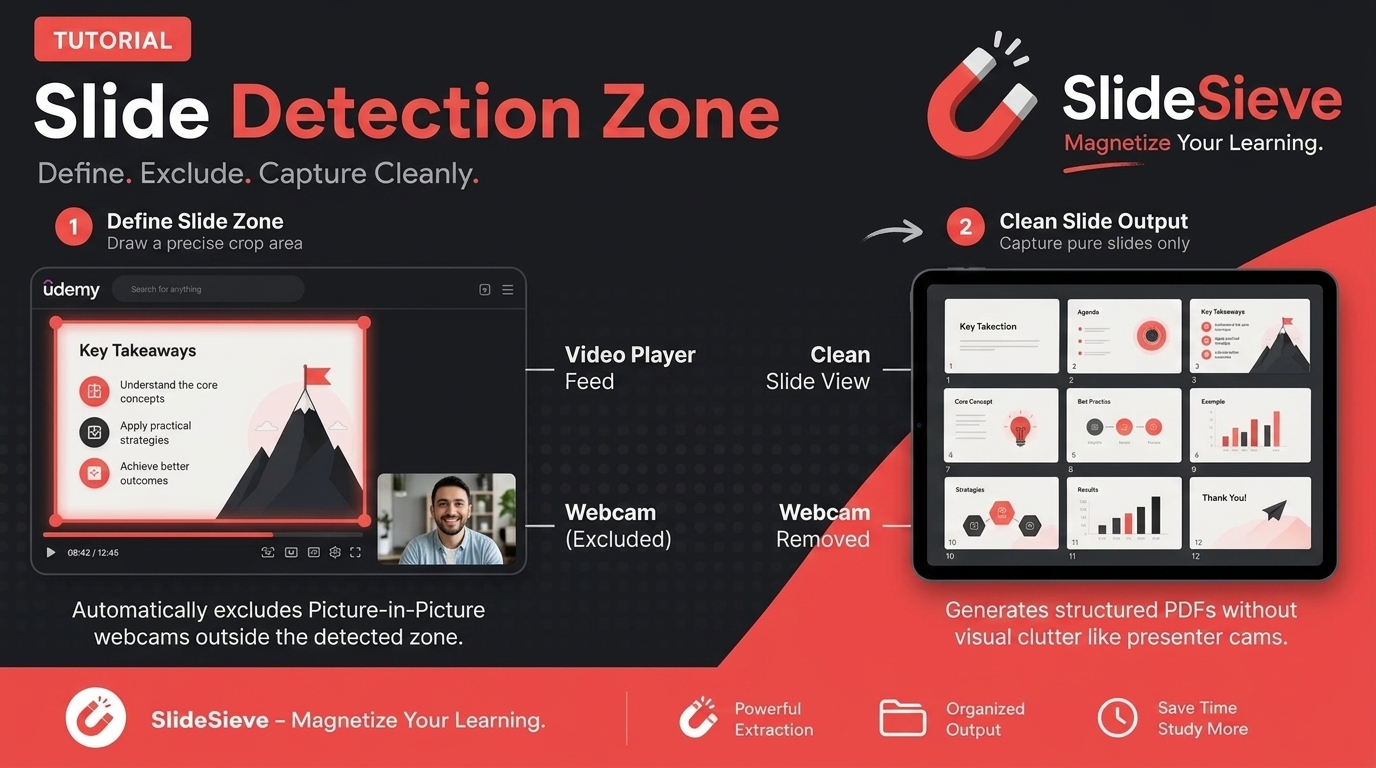
How to Capture Slides from Picture-in-Picture Webcam Courses
Learn how to use SlideSieve's Detection Zone to accurately capture presentation slides from courses that feature Picture-in-Picture instructor webcams.
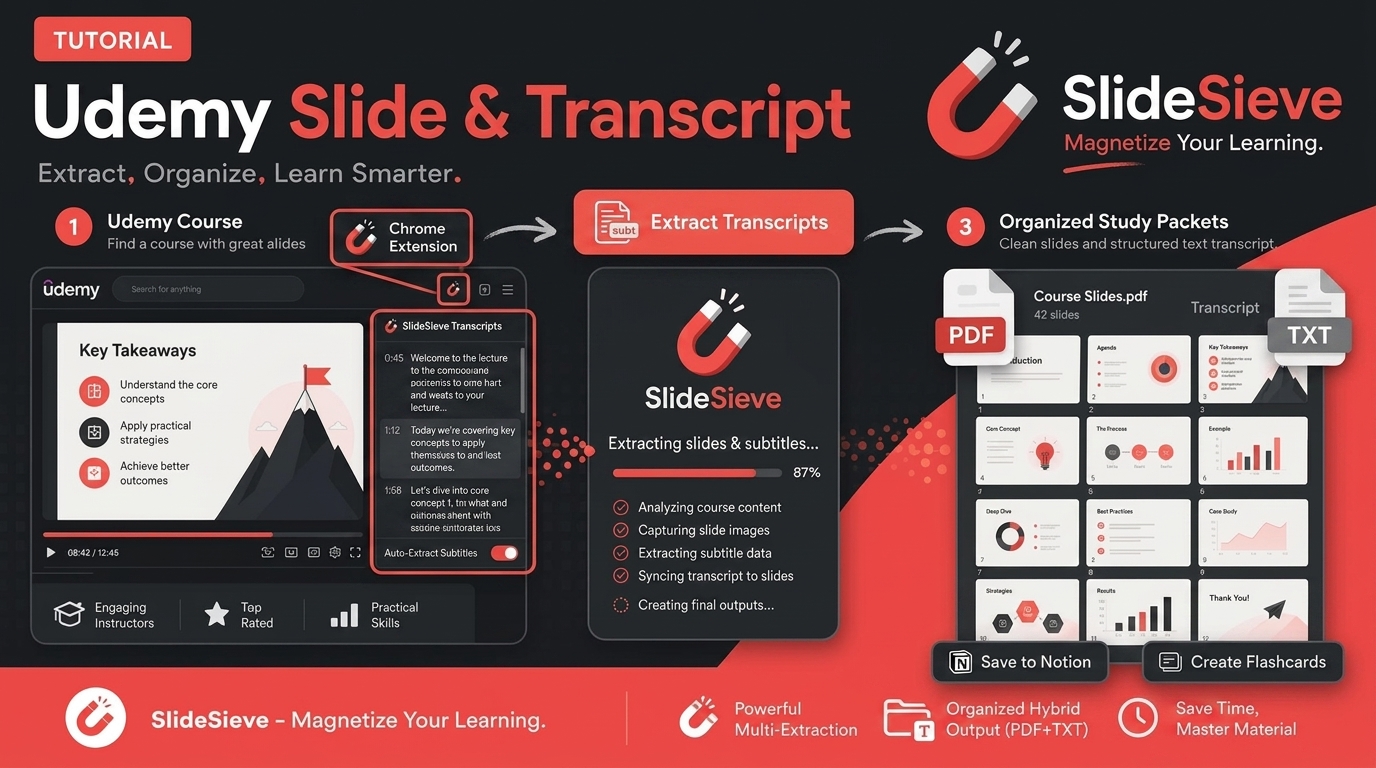
How to Save Course Transcripts with SlideSieve
Learn how to automatically extract and download transcripts from Coursera, Udemy, YouTube, and DeepLearning.AI videos using SlideSieve.
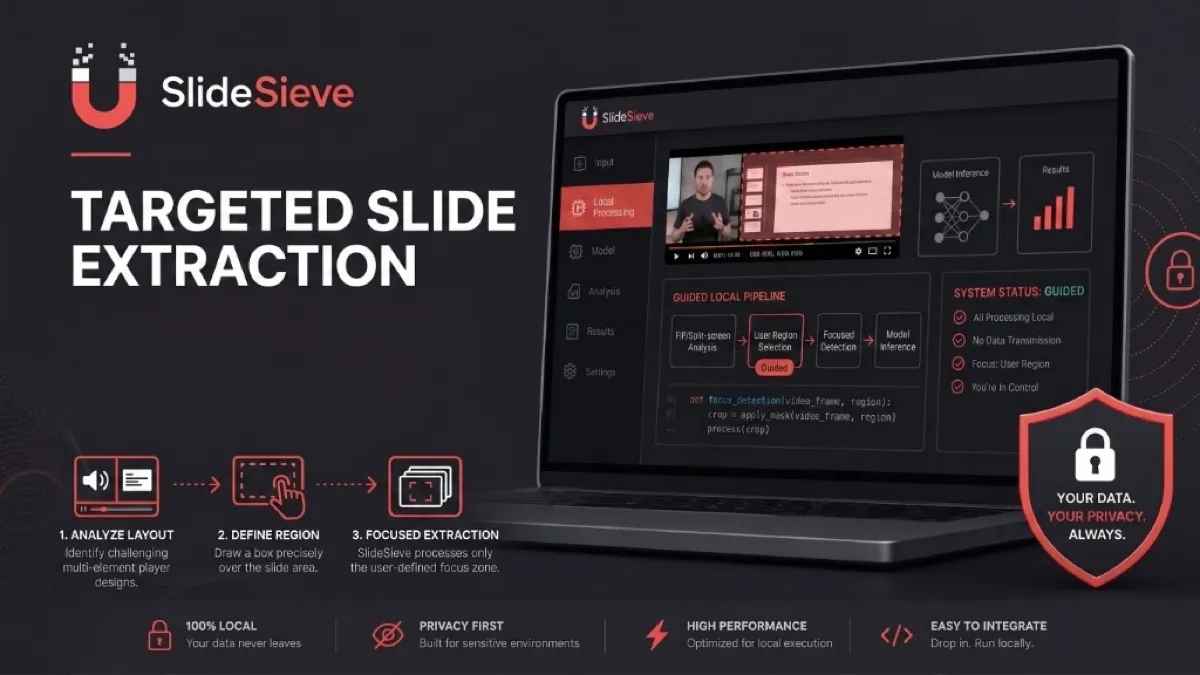
SlideSieve 1.1: Transcript Extraction, Slide Detection Zone, and 15 Languages
Announcing SlideSieve 1.1 with course transcript extraction, custom Slide Detection Zone for PiP webcam layouts, and support for 15 languages.