How to Extract and Save Slides from Udemy Courses
The Challenge of Note-Taking on Udemy
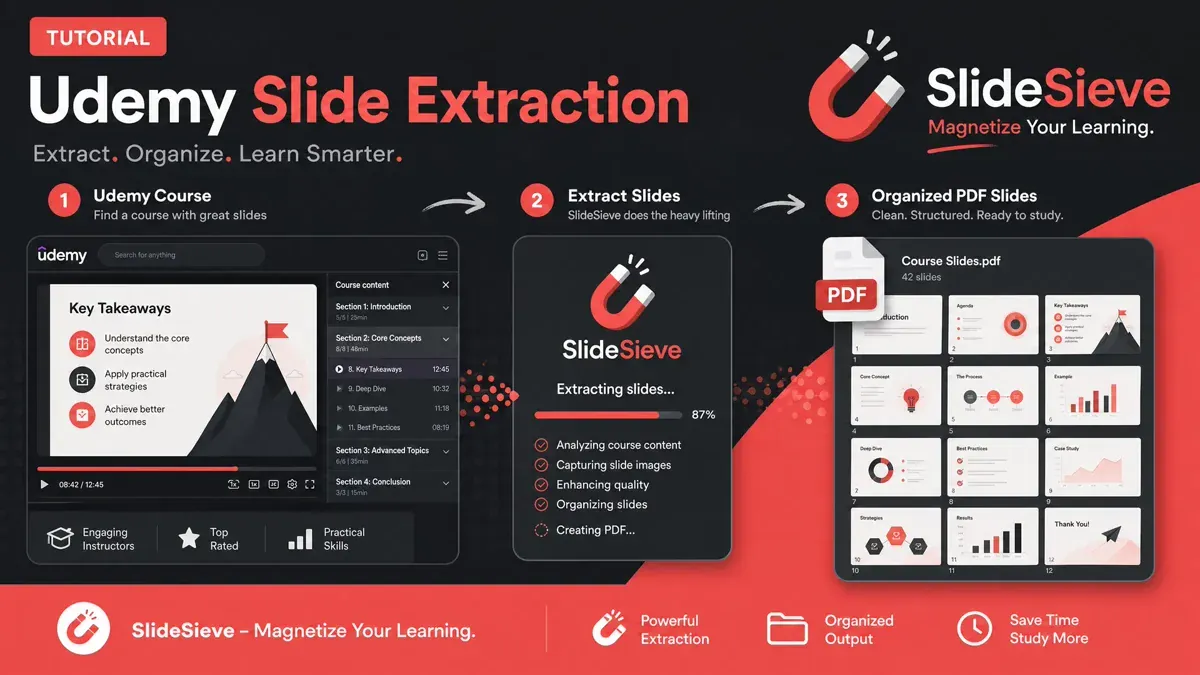
Udemy is a fantastic platform for learning practical skills, from programming to graphic design. While some instructors provide downloadable resources, many do not include the raw slide decks they use in their video presentations. If you want to review the slides later, your only option is to manually pause the video, take a screenshot, and then get back to watching — a process that completely ruins your learning momentum.
SlideSieve is the perfect tool to automate this process. It runs entirely inside your Chrome browser and captures Udemy slides automatically as you watch, with zero manual effort.
Step-by-Step Guide
1. Install SlideSieve
Ensure you have the SlideSieve Chrome Extension installed in your browser. Pin it to your Chrome toolbar so you can quickly access the Side Panel while watching lectures.
2. Open Your Udemy Course
Navigate to your Udemy course and open any video lecture that contains presentation slides. SlideSieve integrates directly with Udemy's video player.
3. Start the Capture
Before pressing play, click the prominent Start Auto Capture button located on the SlideSieve floating toolbar directly under the video player. SlideSieve will automatically read the Udemy page and organize your capture session by the specific course name and lesson you are viewing — so all your slides are neatly labeled and separated by lesson. Now you can hit play, and the extension will capture every slide from the very beginning!
4. Let the Algorithm Work
As you watch the lecture, SlideSieve operates silently in the background. It uses computer vision to analyze each video frame and make a real-time decision: is this a slide, or is this the instructor on camera?
It automatically ignores frames where the instructor is on camera, capturing only the actual slides as they appear. Dark transition screens between sections are also skipped. The result is a clean set of slide captures — nothing more, nothing less.
5. Review Your Captures
After the lecture, open the SlideSieve side panel. Browse your slides in Grid View for a compact overview, or switch to List View to read the content at a larger size. You can delete any unwanted frames by hovering over the thumbnail and clicking the × button.
6. Export to PDF
When the video is finished, use the Export button to instantly generate a local PDF file containing all your Udemy slides, perfectly formatted and preserving the original aspect ratio of every frame. You can also export as individual image files (ZIP) if preferred.
Pro Tips for Udemy
- Start before you press play. Click "Start Auto Capture" before hitting play on the video. This way, SlideSieve is watching from the very first second.
- Use manual snap for whiteboards. Some Udemy instructors draw on digital whiteboards or use on-screen coding demos. These may not be detected as "slides," but you can instantly capture any frame with the
Ctrl + Shift + 9keyboard shortcut. - Jump between lessons freely. SlideSieve tracks lesson changes based on the Udemy URL. When you switch to the next lesson, it automatically starts a fresh capture session under the correct lesson name.
- Your slides are always saved. Captured slides are stored in your browser's local storage (IndexedDB) and are not deleted between sessions. You can export them any time, even days after the lecture.
- Use across multiple providers. If you watch lectures on other websites, you can extract slides from any online course video using the same browser capture process.
Common Questions
Does SlideSieve work with Udemy's mobile app?
No, SlideSieve is a Chrome browser extension and works exclusively on the Udemy website (udemy.com) in a desktop Chrome browser. It is not compatible with the Udemy iOS or Android apps.
Does it work on all Udemy courses? Yes. SlideSieve works with any Udemy course video that contains presentation slides, regardless of the topic or instructor. As long as the video is playing in Chrome, the extension can analyze it.
Will it capture the instructor's talking-head shots? No. The extension specifically detects human presence in the frame. When the video is showing the instructor speaking directly to camera, those frames are automatically skipped. Only slide-like content is captured.
Is my Udemy course data sent to any server? No. SlideSieve processes everything locally inside your browser using JavaScript. No video frames, screenshots, or personal data leave your device. Everything is saved in your browser's local IndexedDB storage.
Can I use SlideSieve on a Udemy Business account? Yes. SlideSieve works on any Udemy content you can access in a Chrome browser, including Udemy Business plans.
The instructor's webcam is overlaid on the slides. What should I do? Use the Slide Detection Zone. Click the Detection Zone icon on the SlideSieve toolbar, drag a rectangle over the slide area (leaving the instructor's PiP window outside the box), and click Save Zone. SlideSieve runs all detection inside that boundary. The webcam is excluded automatically. The zone saves per course, so you only set it once.
More Articles
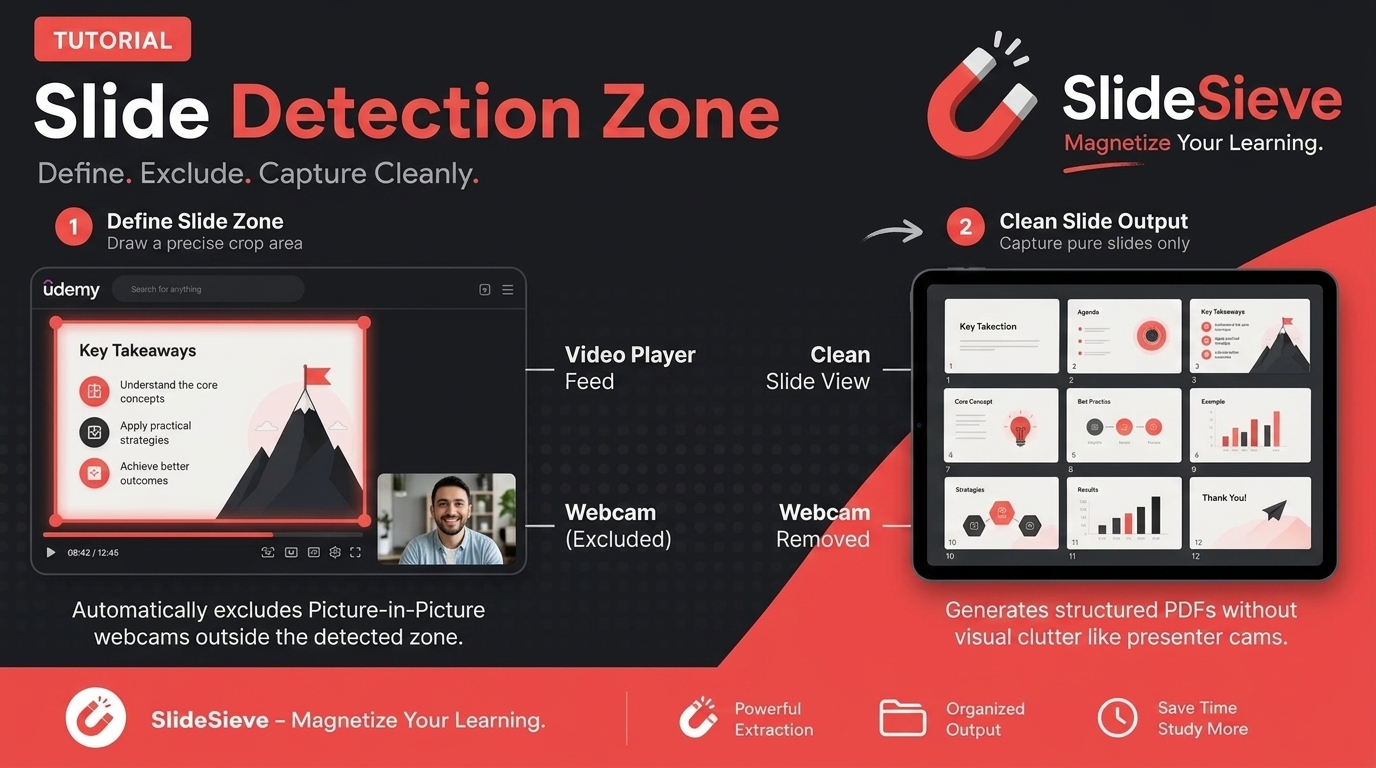
How to Capture Slides from Picture-in-Picture Webcam Courses
Learn how to use SlideSieve's Detection Zone to accurately capture presentation slides from courses that feature Picture-in-Picture instructor webcams.
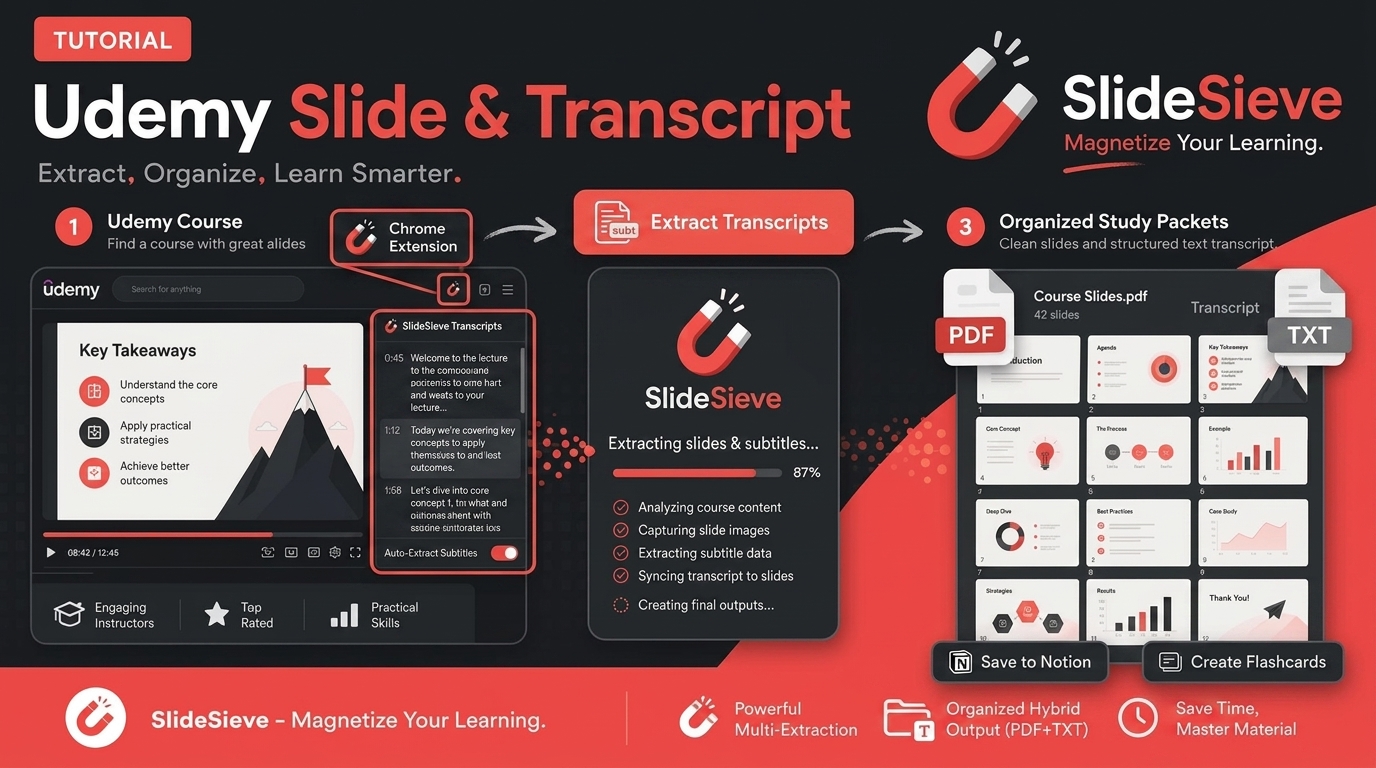
How to Save Course Transcripts with SlideSieve
Learn how to automatically extract and download transcripts from Coursera, Udemy, YouTube, and DeepLearning.AI videos using SlideSieve.

SlideSieve 1.1: Transcript Extraction, Slide Detection Zone, and 15 Languages
Announcing SlideSieve 1.1 with course transcript extraction, custom Slide Detection Zone for PiP webcam layouts, and support for 15 languages.