The Best Way to Capture Slides from DeepLearning.AI Courses (2026 Guide)

Note-Taking on DeepLearning.AI
DeepLearning.AI courses present complex equations, code snippets, architecture diagrams, and mathematical notation. You need the raw slides for review. However, as confirmed by staff on the DeepLearning.AI community forums, slides are currently not available for download for their Short Courses.
When you pause a video to take a manual screenshot, you break your focus. It becomes incredibly hard to stay present and absorb the lecture material when you are constantly worried about capturing the screen. DeepLearning.AI runs as a Next.js Single Page Application (SPA). When you navigate between lessons, the page stays active. Standard screenshot tools fail to track your current lesson. You end up with a folder of unnamed images.
SlideSieve tracks the SPA navigation and captures the slides for you.
Step-by-Step Guide
1. Install SlideSieve
First, ensure you have the SlideSieve Chrome Extension installed in your browser. Pin it to your Chrome toolbar for easy access to the side panel.
2. Open Your DeepLearning.AI Course
Navigate to your course on learn.deeplearning.ai and open any video lecture. Do not press play yet.
3. Start the Capture
Click the Start Auto Capture button on the SlideSieve floating toolbar below the video player before you start the video. SlideSieve integrates with DeepLearning.AI's custom video player and SPA routing. The extension reads the course URL, extracts your course name and lesson title, and labels your slides. You can hit play, and the extension captures the slides from the beginning.
4. Capture the Frames
As the lecture plays, SlideSieve runs a multi-stage analysis to filter frames:
- Instructor Detection: A computer vision model analyzes the center of each frame. The model rejects the frame when the video cuts to the instructor's webcam.
- Transition Filtering: The extension skips dark fade-to-black screens between sections.
- Code/Notebook Filtering: DeepLearning.AI courses show Jupyter Notebook cells. SlideSieve uses a horizontal line analysis algorithm to detect and skip code editor layouts. If the frame contains the DeepLearning.AI branding, the extension captures it as a branded slide.
- Progressive Build Tracking: Many DLAI slides reveal content in steps. SlideSieve detects meaningful updates and captures the new version. You avoid saving duplicate frames.
5. Navigate Between Lessons
Because DeepLearning.AI is a Single Page Application, navigating to the next lesson keeps the page loaded. SlideSieve detects URL changes and updates the active course and lesson scope. The extension stores your slides from Lesson 1 and Lesson 2 separately.
6. Export Your Slides
When you complete a module, review your captured slides in the side panel. Click the Export button to generate a PDF document of your DeepLearning.AI slides. The PDF preserves the original aspect ratio of each slide.
What SlideSieve Captures vs. Skips on DeepLearning.AI
| Content Type | Captured? |
|---|---|
| Branded presentation slides (with DLAI logo) | ✅ Yes |
| Equation and diagram slides | ✅ Yes |
| Architecture diagrams | ✅ Yes |
| Instructor talking-head webcam | ❌ Skipped |
| Dark transition frames | ❌ Skipped |
| Jupyter Notebook / Code cells | ❌ Skipped (unless branded) |
| Lab environment screens | ❌ Skipped |
Pro Tips for DeepLearning.AI
- Start before you press play. Click "Start Auto Capture" before hitting play to capture slides from the first second of the lecture.
- Skip the introduction lessons. The first "Welcome" lesson of most DLAI specializations is a talking-head intro. Start capturing from Lesson 2.
- Use manual snap for live math. Some DLAI instructors write equations on a digital notepad during the lecture. The extension might skip these frames. You can capture any frame with the
Ctrl + Shift + 9keyboard shortcut. - Organize lessons by URL. SlideSieve extracts the lesson order, course name, and lesson name from the URL. The side panel shows the correct dropdowns.
- Use across multiple educational providers. You can apply this same capture method to other learning websites. See our complete guide on how to extract slides from any online course video.
Frequently Asked Questions
Does SlideSieve work with all DeepLearning.AI specializations?
Yes. SlideSieve supports all courses hosted on learn.deeplearning.ai. Unfortunately, slides are not available for the Short Courses at the moment.
Will the extension capture Jupyter Notebook cells? No. SlideSieve includes a code-detection filter that rejects frames resembling IDEs, code editors, and Jupyter Notebooks.
Does SlideSieve upload my course slides to a server? No. All processing happens in your Chrome browser. You keep your frames, screenshots, and course data local. The extension saves everything in your browser's local IndexedDB storage.
More Articles
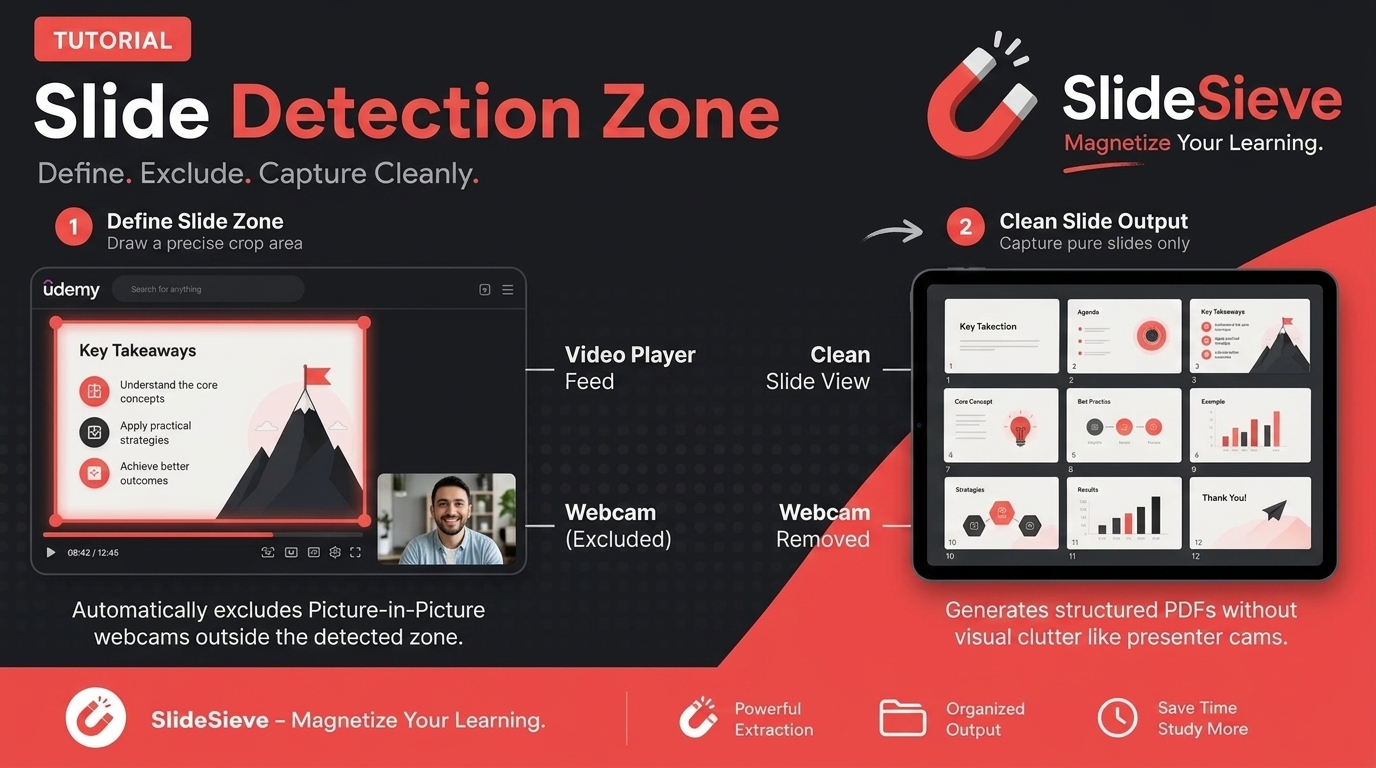
How to Capture Slides from Picture-in-Picture Webcam Courses
Learn how to use SlideSieve's Detection Zone to accurately capture presentation slides from courses that feature Picture-in-Picture instructor webcams.
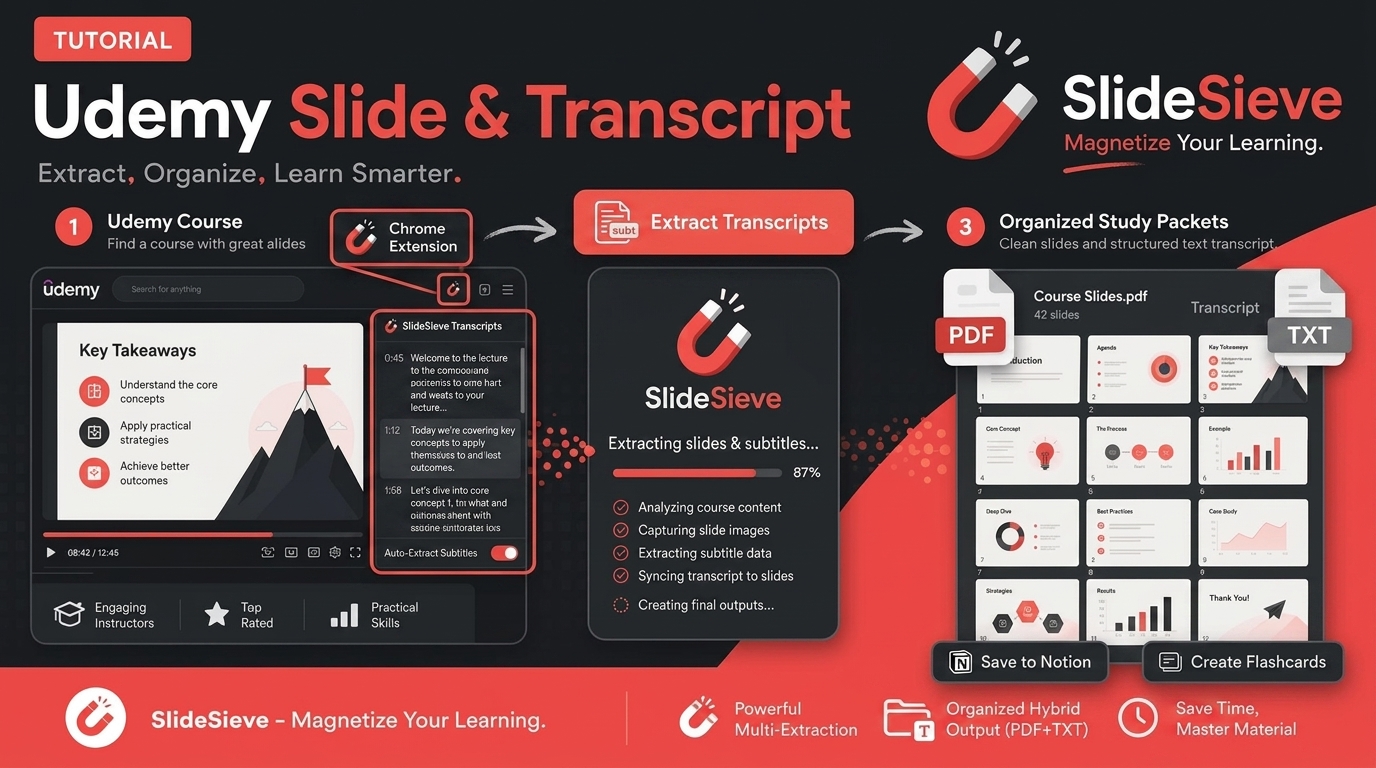
How to Save Course Transcripts with SlideSieve
Learn how to automatically extract and download transcripts from Coursera, Udemy, YouTube, and DeepLearning.AI videos using SlideSieve.
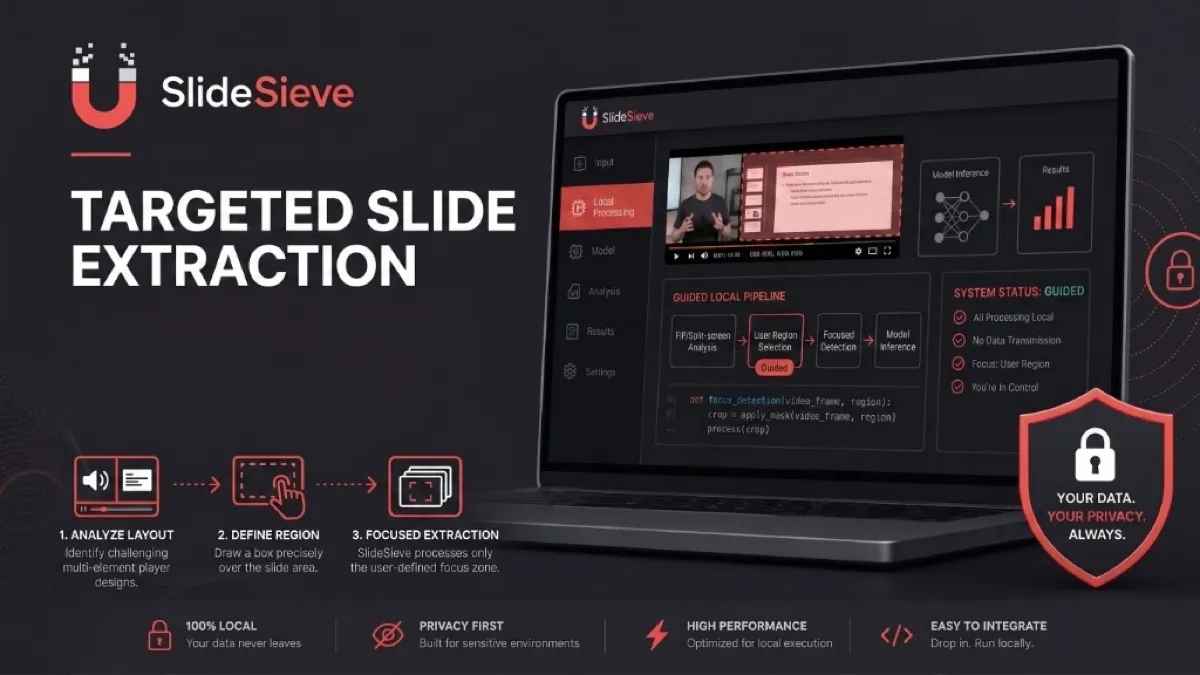
SlideSieve 1.1: Transcript Extraction, Slide Detection Zone, and 15 Languages
Announcing SlideSieve 1.1 with course transcript extraction, custom Slide Detection Zone for PiP webcam layouts, and support for 15 languages.