Auto-Capture Coursera Slides into Clean PDFs
SlideSieve is a browser extension for Chrome and Edge that automatically detects and captures presentation slides from Coursera video lectures in real time. It intelligently filters out instructor talking-head segments, removes near-duplicate frames, and extracts the full course transcript — exporting everything as a clean multi-page PDF.
 Microsoft Edge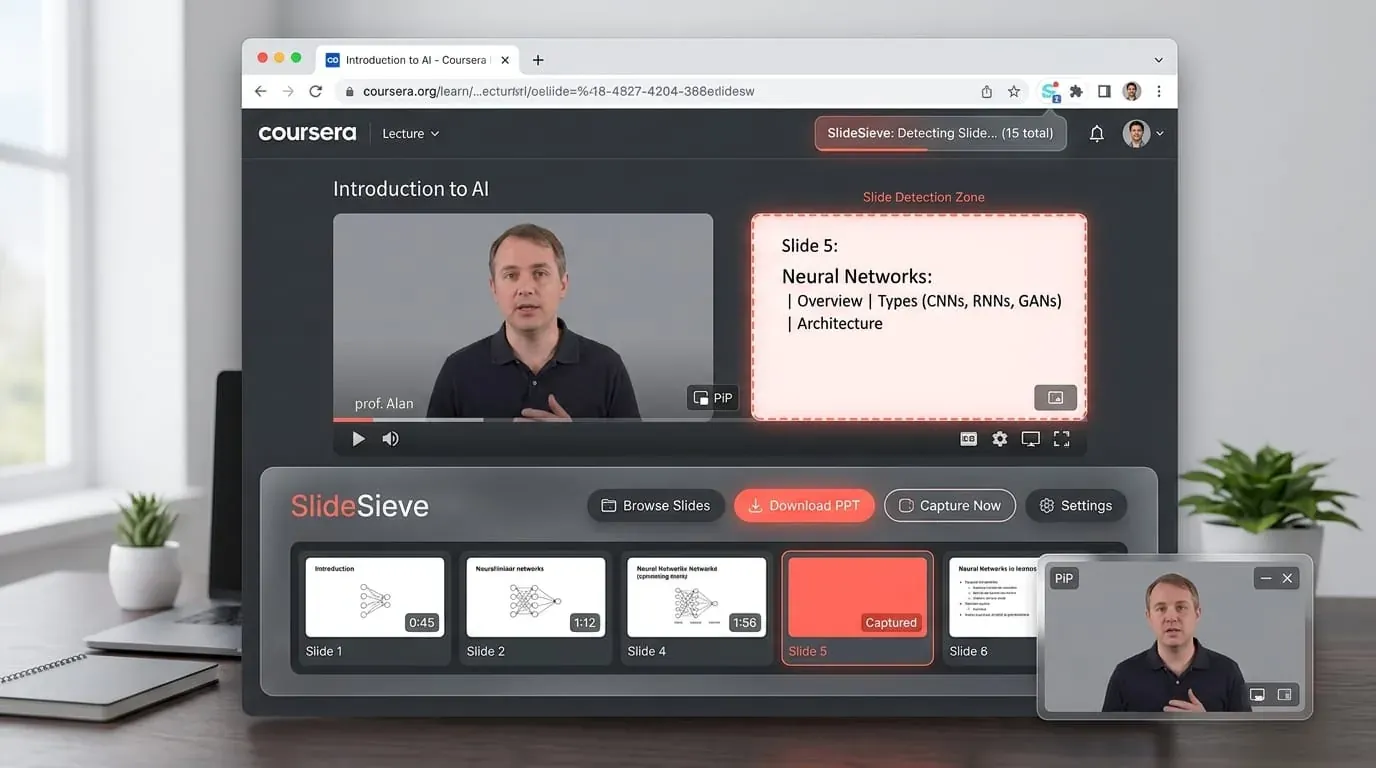
100%
Private — runs locally
High precision
Slide detection
1-click
PDF export
Free
Basic tier included
Why use SlideSieve for Coursera?
Tailored detection algorithms designed specifically for Coursera lecture video layouts and study workflows.
Works on all Coursera courses and Specializations
SlideSieve works on any Coursera course you have access to — including free audit courses, Specializations, Professional Certificates, and Guided Projects.
Filters out instructor webcam automatically
Coursera courses frequently cut between slides and the instructor's face. SlideSieve uses spatial blob analysis to detect and skip instructor talking-head frames, so only genuine slide content is captured.
Handles progressive slide builds
Many Coursera lecturers reveal bullet points one-by-one on a single slide. SlideSieve's structural diff algorithm detects these incremental changes and captures each build stage without creating dozens of near-identical duplicates.
Organized by course and lesson
Captured slides are automatically grouped by Coursera course name and lesson, so your exported PDFs are clearly named and easy to find even when studying multiple courses at once.
100% private — no data leaves your browser
All slide detection and storage happens locally in your browser's memory and IndexedDB. No video content, screenshots, or personal data are ever sent to SlideSieve's servers.
Save Course Transcripts
Along with your slides, SlideSieve automatically extracts and saves the full course transcript. You can search through the text and export it alongside your slides for comprehensive study notes.
Free to start, no subscription
The free plan lets you capture up to 50 slides in total and includes a 1-time transcript extraction trial. Pro ($16.99, one-time) removes all limits for every course on Coursera and all other supported platforms.
How to Save Lecture Slides as a PDF
Extract slides and transcripts in a few simple steps.
Install Extension
Add the SlideSieve Chrome extension to your browser. The tool runs alongside your video player.

Open Video Lecture
Navigate to a supported course platform and open a lecture video. The SlideSieve toolbar appears below the video player.
Set Detection Zone (Optional)
If your course has a persistent instructor webcam (Picture-in-Picture) over the slides, draw a Slide Detection Zone over the slide area to ignore the camera.
Capture Slides
Click Start Auto-Capture, then play the video. The extension analyzes the frames and extracts presentation slides. It captures presentation slides and diagrams, and skips instructor-only shots and transitions. For code walkthroughs, press Manual Snap (Ctrl+Shift+9).
Review Captured Slides
Access your saved slides in the side panel. View them in a grid, list, or presentation view, and delete any unwanted frames.
Export PDF & Transcripts
Generate a PDF document of your slides and optionally export the full course transcript. Read or print your study guide offline.
Want to save Coursera lecture slides as PDF?
Check out our answer-first guide on automatically capturing Coursera slides into a clean PDF without manual screenshots.
Simple, Honest Pricing
Start for free. Pick a plan that fits your schedule — own it forever, or grab 3 months for a course sprint.
No credit card required
- DeepLearning.AI, Coursera, Udemy, YouTube, etc.
- Auto slide detection, deduplication & instructor filtering
- Up to 50 slides captured globally
- Slide Detection & Exclude Zones included
- PiP Webcam Magic Eraser
- 3 free transcript extraction trials
- Export free slides to PDF
- Grid, List & Slideshow views
- Multi-language interface (15 languages)
- Unlimited Slide Captures (Pro)
- Unlimited Course Transcripts (Pro)
- Unlimited PDF Exports (Pro)
Expires 90 days after purchase (~$2.33/mo)
- Everything in Free
- Unlimited slides per lesson
- Unlimited PDF Exports
- Slide Detection Zone & PiP Magic Eraser
- Course transcripts (TXT, SRT, VTT)
- Multi-format export (PDF & images)
- Priority support
- Valid for 90 days from purchase
Secure checkout · Instant license key delivery
Launch discount — 32% off. Pay once, use forever.
- Everything in Free
- Unlimited slides per lesson
- Unlimited PDF Exports
- Slide Detection Zone & PiP Magic Eraser
- Course transcripts (TXT, SRT, VTT)
- Multi-format export (PDF & images)
- Priority support
- All future Pro features
Secure checkout · Instant license key delivery
Already have a license key? Open the SlideSieve side panel → Settings → Pro License to activate.
Frequently Asked Questions
Common questions about using SlideSieve with Coursera
SlideSieve respects intellectual property. Captured slides should be used for personal study only, in accordance with Coursera's Terms of Service.
Stop screenshotting Coursera slides.
Install in 60 seconds. Watch your lecture. Get a clean PDF — automatically.
Microsoft EdgeFree plan available · No credit card required · 100% private