How to Save Course Transcripts with SlideSieve
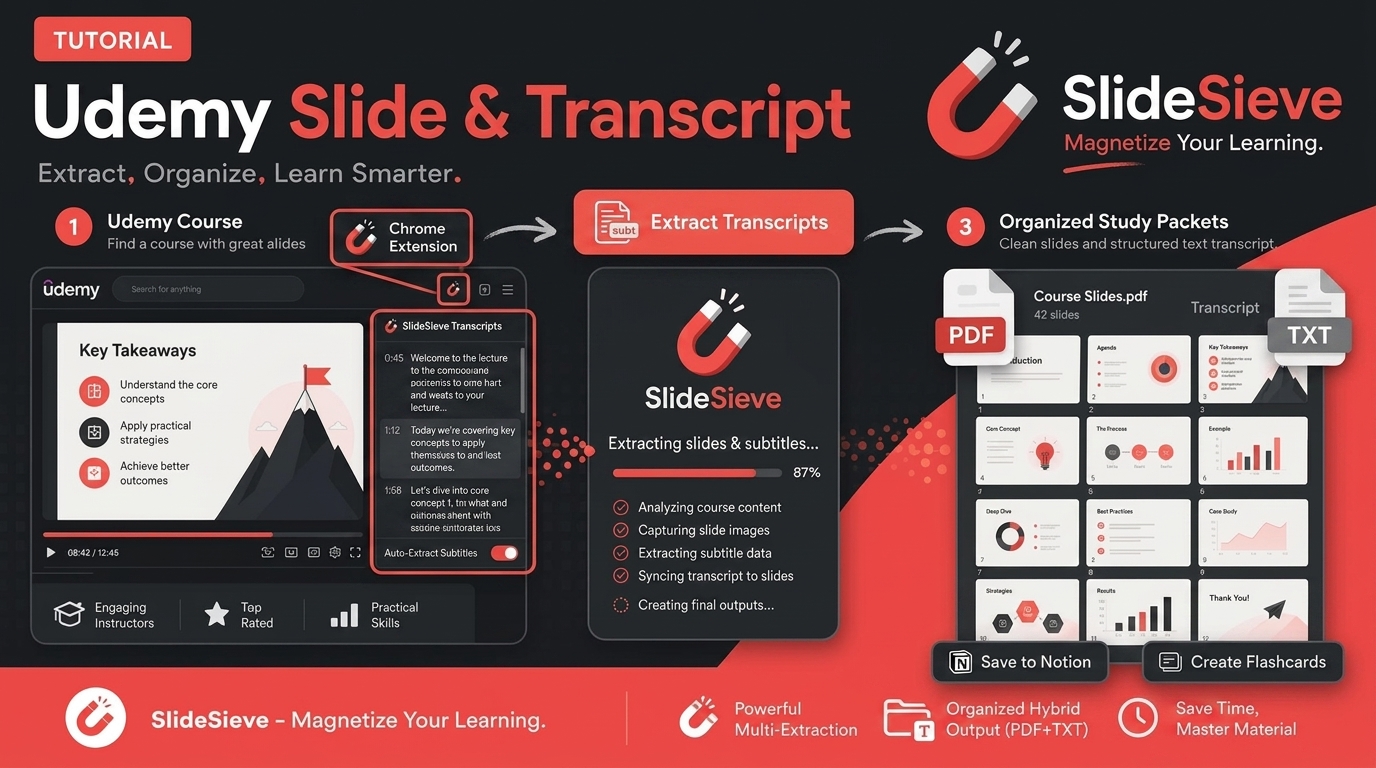
Taking notes from complex online courses often requires more than just presentation slides. To truly capture the context of a lecture, you need the instructor's verbal explanations.
Starting in version 1.1, SlideSieve automatically extracts the full course transcript while capturing your slides. In this guide, we'll show you how to use this feature to build the ultimate study guide.
How Transcript Extraction Works
SlideSieve's transcript extraction runs completely in the background. You don't need to click a separate "Extract Transcript" button or run a separate tool.
When you click Start Auto-Capture on a supported video, SlideSieve instantly hooks directly into the video player's subtitle and transcript data streams. Rather than reading it piece-by-piece, it automatically extracts the entire transcript for the lesson in a single pass at the very beginning of the video.
Supported Platforms
Transcript extraction is currently supported on the same platforms as slide capture:
- Coursera
- Udemy
- YouTube
- DeepLearning.AI
Step-by-Step Guide
Here is how to extract and export a course transcript:
Step 1: Start Auto-Capture
Open any supported lecture video.
Click the Start Auto-Capture button on the SlideSieve floating toolbar and play the video normally. Transcripts extract automatically in the background, or you can trigger extraction using the Extract Transcript icon at any time.
Step 2: Open the Side Panel
While the video plays, you can open the SlideSieve side panel by clicking the extension icon in your Chrome toolbar.
You will notice a new Transcript tab next to your slides.
Step 3: View the Transcript in Real-Time
Click the Transcript tab. The full transcript will already be loaded. As the video plays, the tab automatically highlights the current sentence being spoken, ensuring you never lose your place.
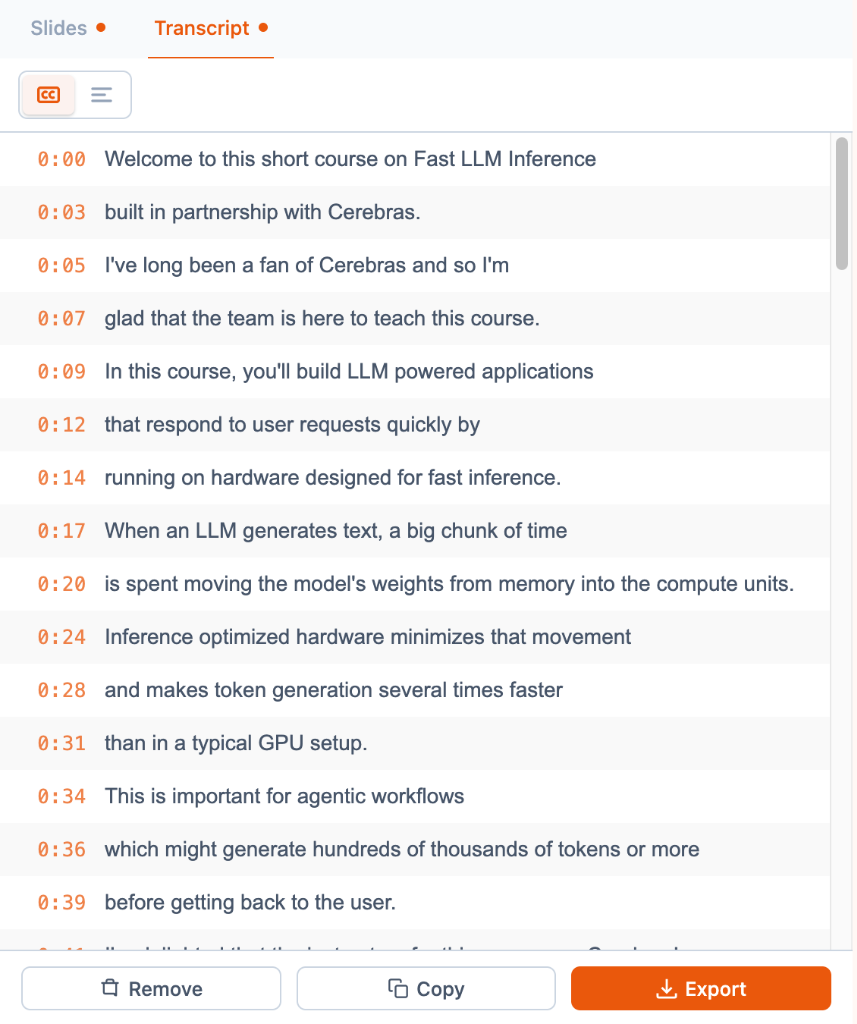
This view is incredibly useful for reviewing complex explanations. If the instructor quickly breezes past a complex mathematical equation, you can pause the video, switch to the Transcript tab, and read their exact explanation at your own pace.
Step 4: Export the Transcript
When the lesson ends, click the Export button.
You now have the option to export the transcript alongside your slides. SlideSieve will generate a clean .txt, .srt, .vtt, or .pdf file containing the full lecture text, perfectly synced and organized by course and lesson name.
Why This is a Game Changer
Combining visual slide data with textual transcript data creates a comprehensive study asset.
When reviewing for an exam, you no longer have to scrub through a 45-minute video to find the one minute where the instructor explained a specific concept. You can simply read the transcript, cross-reference it with the captured slide, and retain the knowledge instantly.
Best of all? This entire process happens locally in your browser. The video text is never sent to a cloud server, ensuring your privacy is completely protected.
SlideSieve includes a 1-lesson free transcript extraction trial and 50 free slide captures right out of the box with no license key or credit card required. Upgrading to SlideSieve Pro ($16.99 one-time) unlocks unlimited transcript extractions alongside unlimited slide captures.
More Articles

How to Capture Slides from Picture-in-Picture Webcam Courses
Learn how to use SlideSieve's Detection Zone to accurately capture presentation slides from courses that feature Picture-in-Picture instructor webcams.
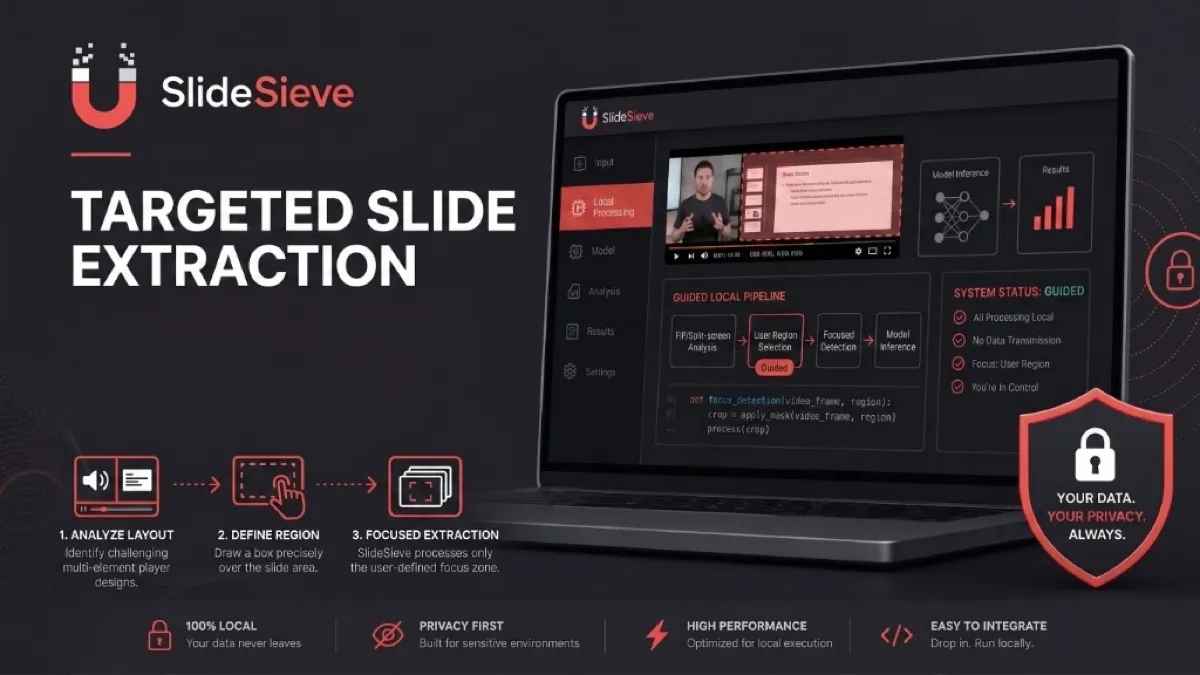
SlideSieve 1.1: Transcript Extraction, Slide Detection Zone, and 15 Languages
Announcing SlideSieve 1.1 with course transcript extraction, custom Slide Detection Zone for PiP webcam layouts, and support for 15 languages.
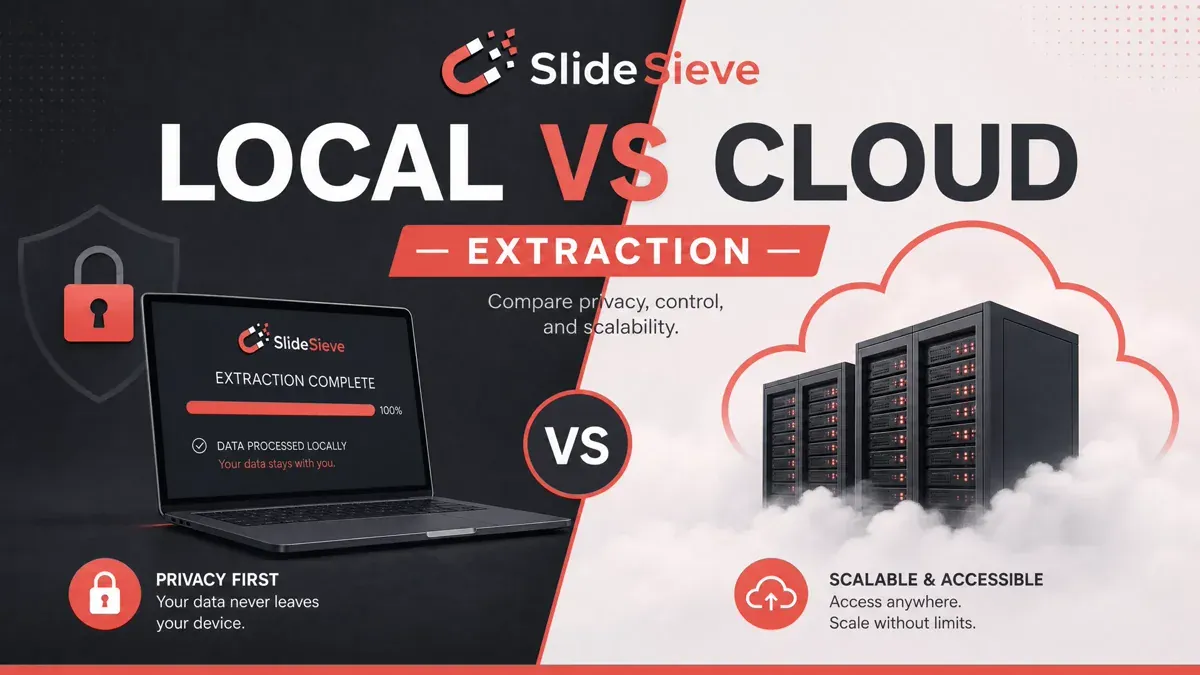
Local Browser Extraction vs. Cloud Upload Services: Which is Better for Extracting Slides?
A deep dive into why local, browser-based slide extraction is safer, faster, and more cost-effective than cloud-based video summarizers.