Get your first slides in under a minute
Pick the demo that matches your course: a regular lecture video, or one with the instructor's webcam over it.
Capture slides automatically
Click Auto Capture, press play, and SlideSieve saves each new slide to the side panel as it appears. No pausing, no manual screenshots.
- Turn on Auto Capture from the toolbar
- Play your lecture as usual
- Review and export your slides from the side panel
Skip the instructor's webcam PRO
Does the instructor's face sit in a corner of the video? Draw an exclude zone around the webcam window and save it. Then turn on Auto Capture and play. Your slides are saved without the webcam.
- Draw an exclude zone over the webcam and save
- Turn on Auto Capture
- Play the video and get slides without the overlay
Complete Step-by-Step Guide
Everything you need to master SlideSieve: pinning the extension, using the floating toolbar, managing review views, and exporting clean slides & transcripts.
Pin the Extension
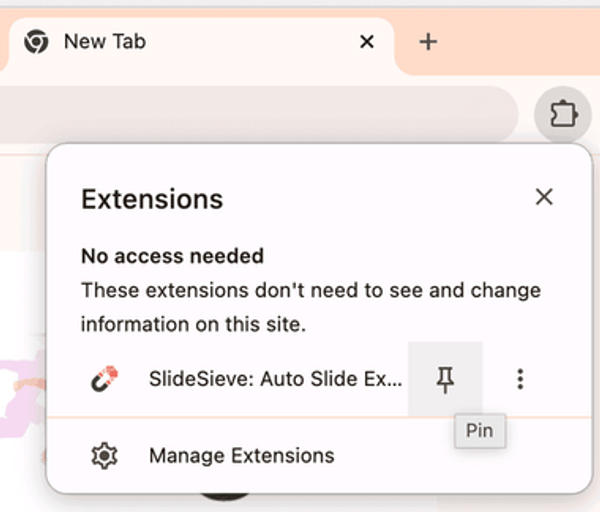
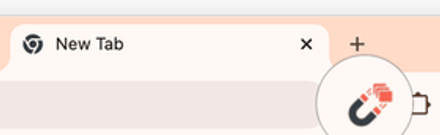
Click the Chrome extensions icon  in your browser toolbar, find SlideSieve, and click the pin icon. This gives you instant one-click access to your captured slide deck and notes.
The Floating Toolbar
Whenever you play a lecture video on DeepLearning.AI, Coursera, YouTube, or Udemy, the SlideSieve toolbar appears directly below the video player. You can drag it anywhere on your screen or dock it to the bottom.
Interactive Preview — Hover over any button to learn more
Drag Handle
Click and drag to reposition the toolbar anywhere on your screen.
Crop Area / Detection Zone
Define a custom capture zone or crop out webcam overlays.
Auto-CaptureCtrl+Shift+8
Automatically detects and extracts slides as you watch the video.
Manual SnapCtrl+Shift+9
Instantly capture the current video frame as a slide with one click.
Extract Transcript
Extracts and synchronizes spoken transcripts alongside your slides.
Layout Toggle
Dock the toolbar to the bottom of the page or let it float freely.
Toggle Side Panel
Open or close the side panel to view captured slides and notes.
Auto-Capture & Real-Time Status
Click the Auto-Capture icon (or press Ctrl+Shift+8). SlideSieve monitors the video in real-time, filtering out instructor webcams, code screencasts, and transitions so only clean slides are recorded.
To stop auto-capturing, click the Auto-Capture icon again or click Stop Extracting in the side panel footer.
The Side Panel — Review & Organize
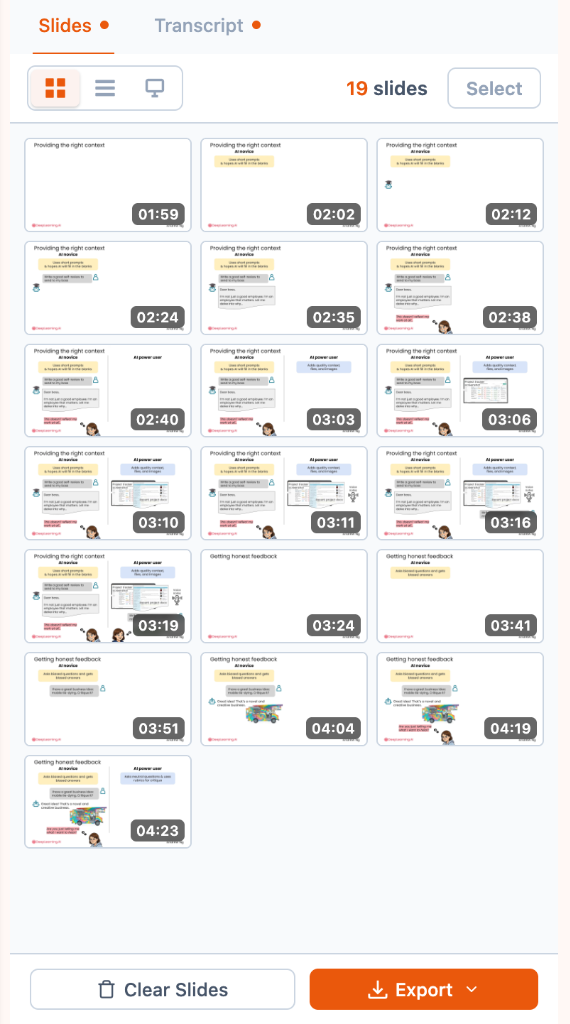
Click the pinned SlideSieve icon or the Side Panel button on the toolbar. Slides you capture appear here automatically in real-time. Choose between 3 customized view layouts:
Three Flexible View Modes
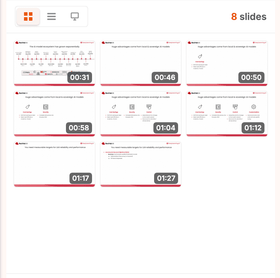 Grid View
Compact visual overview of all slides in the current lesson.
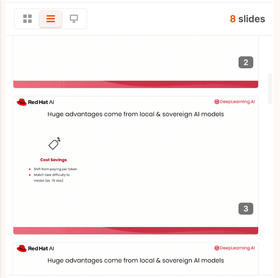 List View
Sequential layout with exact video timestamps and slide order.
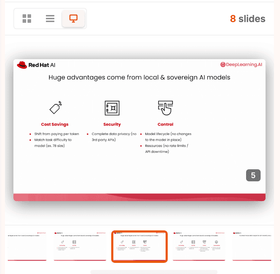 Presentation View
Full-width deck layout optimized for revision and reading.
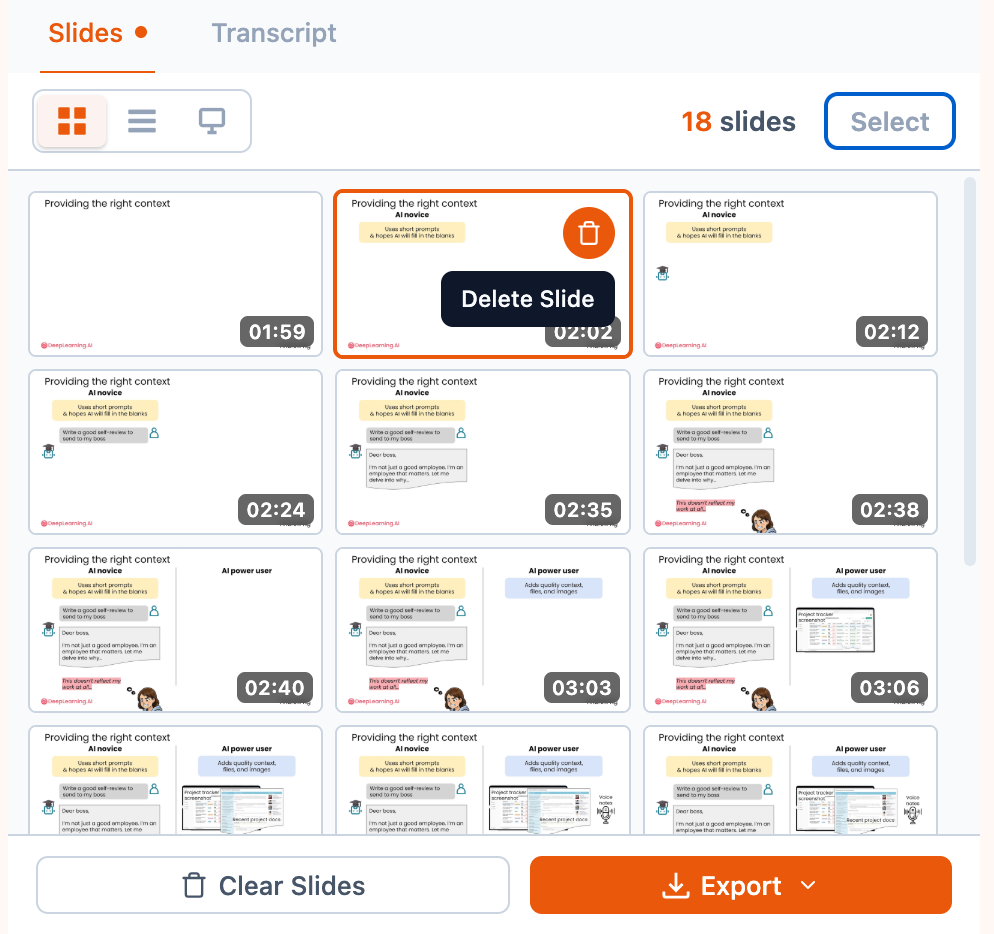
Manage Your Slides
Easily remove individual slides by hovering over them and clicking the trash icon, or use the bottom controls to clear all slides from the current lesson.
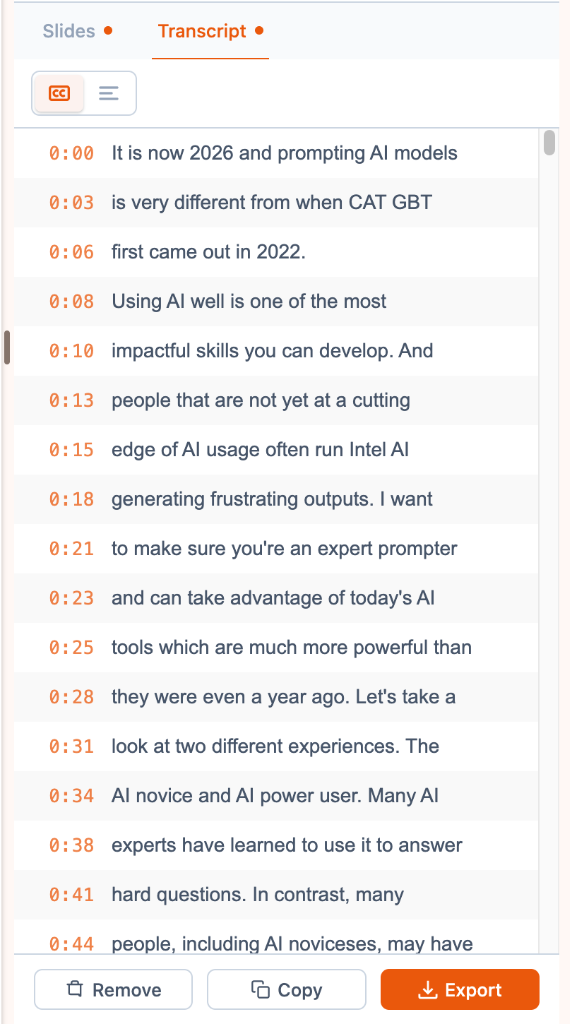
The Transcript Tab — Spoken Lecture Transcripts
Switch to the Transcript tab in the Side Panel to view the full lecture transcript. You can toggle between a detailed Timestamps view for reference, or a clean Paragraph view for smooth reading.
Export Slides & Transcripts
When you finish your lesson, click the Export button at the bottom of the side panel. Download your slides as a clean PDF document, or export transcripts to plain text (.txt), CSV, or subtitle formats (.srt or .vtt).
Export Options
Try SlideSieve in Action
Choose any platform below to test right now — the floating toolbar will appear beneath the video player automatically:
 DeepLearning.AI
Optimized for Andrew Ng's free short courses. Captures clean presentation slides and filters code notebooks.
 Coursera
Works on all Specializations and free courses. Attaches seamlessly below the Coursera video player.
 YouTube
Test right away with a free university machine learning lecture video starting directly on a slide.
 Udemy
UdemyOpen any enrolled or free course. Slides and transcripts are saved as you watch (standard non-DRM videos).
* Tip: If you just installed SlideSieve with lecture tabs already open, refresh the video tab once to load the toolbar.