SlideSieve 1.1: Transcript Extraction, Slide Detection Zone, and 15 Languages
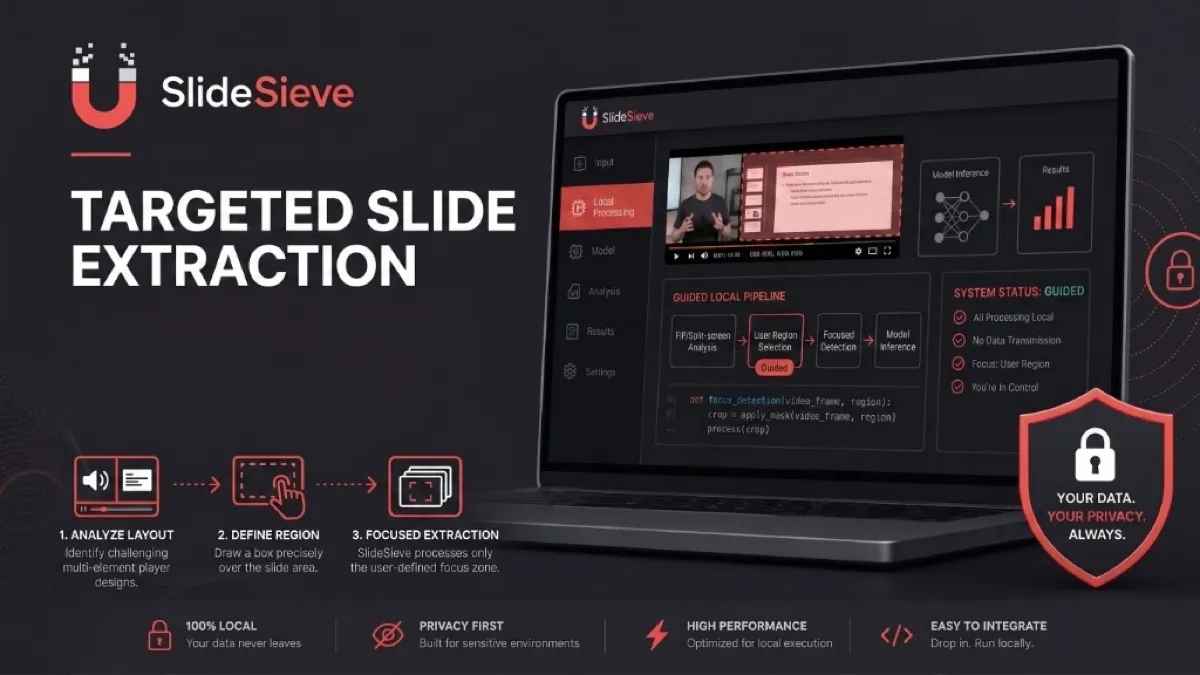
SlideSieve 1.1 is here, and it represents a massive leap forward in how you capture, process, and retain knowledge from online courses.
While version 1.0 perfected the core mechanics of automatically capturing slides from DeepLearning.AI, Coursera, Udemy, and YouTube, we quickly realized that capturing the visual information was only half the battle. Furthermore, we needed a robust solution for complex video layouts that tripped up our AI.
Today, we're solving both problems and opening up SlideSieve to the global learning community.
Introducing Transcript Extraction
You asked, and we listened. The number one feature request since our launch has been: "Can SlideSieve capture what the instructor is saying, along with the slides?"
As of version 1.1, the answer is a resounding yes.
When you start Auto-Capture on a supported platform, SlideSieve now hooks into the video's subtitle and transcript data streams. As the video plays, it extracts the transcript in real-time, perfectly synced with the video progression.
Why This Matters for Your Study Workflow
Taking notes from a dense, highly technical course (like Andrew Ng's Machine Learning Specialization) requires both visual context (the slides) and verbal context (the instructor's explanation).
Before SlideSieve 1.1, you had a clean PDF of the slides, but you might forget why a specific equation was important if the slide itself lacked text. Now, the full transcript is saved locally alongside your slides.
You can:
- Search the Transcript: Looking for the exact moment the instructor explained "Gradient Descent"? Search the extracted transcript directly in the SlideSieve side panel.
- Export Together: When you click "Export," you can now choose to download the transcript as a clean text document right alongside your slide PDF. It's the ultimate study guide, generated automatically while you sit back and learn.
The PiP Problem & The Slide Detection Zone
If you take courses on Coursera, Udemy, or YouTube, you're deeply familiar with the Picture-in-Picture (PiP) layout. A small instructor webcam window floats in the corner of the screen, overlaid directly on top of the presentation slides.
Instructors love this format because it allows them to maintain a human connection with the audience without taking up valuable screen real estate. But for an AI-powered slide capture tool, it creates a unique challenge.
The Challenge of Corner Webcams
SlideSieve uses an advanced spatial connected-component algorithm to identify human faces and talking-head segments. When it sees an instructor dominating the screen, it knows to skip that frame (because it's not a slide).
However, in a PiP layout, the instructor is small and tucked into a corner. Their "blob size" sits right on the mathematical boundary of our detection threshold. If we tune the AI to aggressively ignore the PiP camera, it risks accidentally capturing full-screen talking-head frames on other courses.
The PiP window moves. It resizes. It disappears and reappears. There is no constant universal threshold we can tune against.
The Solution: You Draw the Boundary
Instead of playing a never-ending game of AI whack-a-mole, we built a structural fix: The Slide Detection Zone.
Click the new crop icon on the floating toolbar. A darkened overlay will cover the video. At the top of the screen, you can toggle between two distinct modes:
- Capture Zone: Click and drag to draw a rectangle over the slide area, taking care to leave the instructor's PiP window outside the box. SlideSieve's detection pipeline will run only inside that rectangle.
- Exclude Zone: Click and drag to draw a rectangle directly over the instructor's PiP webcam window. SlideSieve's detection pipeline will analyze the whole video except for that specific box.
Finally, click "Save Zone." From that moment on, your slides are captured cleanly.
Pro-tip: The Detection Zone is saved to your browser's local storage and scoped to that specific course. You only need to set it once.
Other Uses for the Detection Zone
- Split-screen layouts: If a video shows slides on the left and a live coding terminal on the right, draw the zone over the left side only.
- Non-standard players: If a video player embeds slides in a weird sub-region of the viewport, just match the zone to the slide canvas.
Fully Localized in 15 Languages
Education is global, and SlideSieve should be too. As of version 1.1, the entire extension interface has been fully localized into 15 languages:
- English
- German
- French
- Spanish (Spain & Latin America)
- Italian
- Portuguese (Portugal & Brazil)
- Japanese
- Korean
- Simplified Chinese
- Traditional Chinese
- Indonesian
- Hebrew
- Turkish
Every single button, tooltip, status message, settings panel, and overlay label has been carefully translated.
When you install SlideSieve, it automatically detects your browser's default language and configures the UI to match. If you ever want to change it, you can do so instantly from the Settings panel.
Get the Update Today
SlideSieve 1.1 is live now on the Chrome Web Store. If you already have the extension installed, your browser will update it automatically in the background.
As always, the core auto-capture functionality is 100% free to use, and all processing happens locally in your browser. No video data or personal information ever touches a cloud server.
More Articles
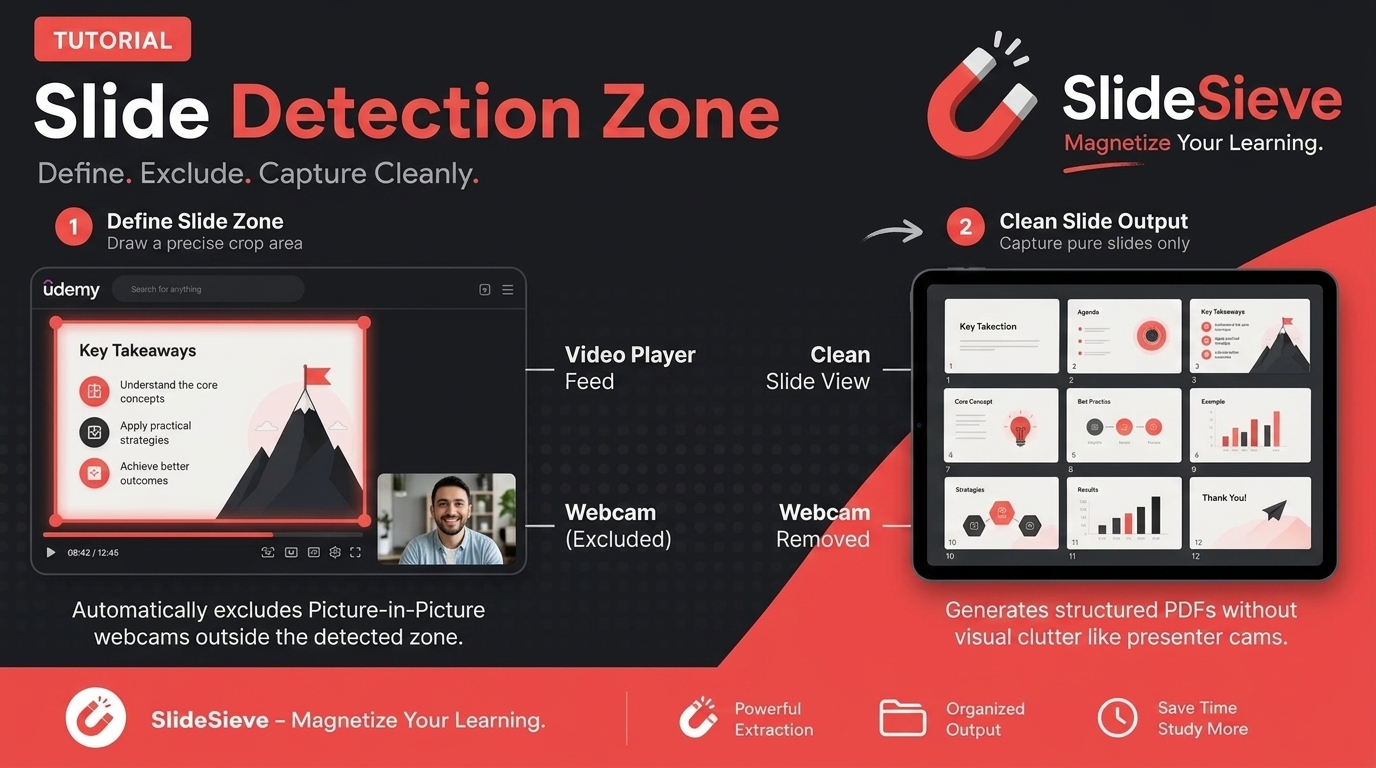
How to Capture Slides from Picture-in-Picture Webcam Courses
Learn how to use SlideSieve's Detection Zone to accurately capture presentation slides from courses that feature Picture-in-Picture instructor webcams.
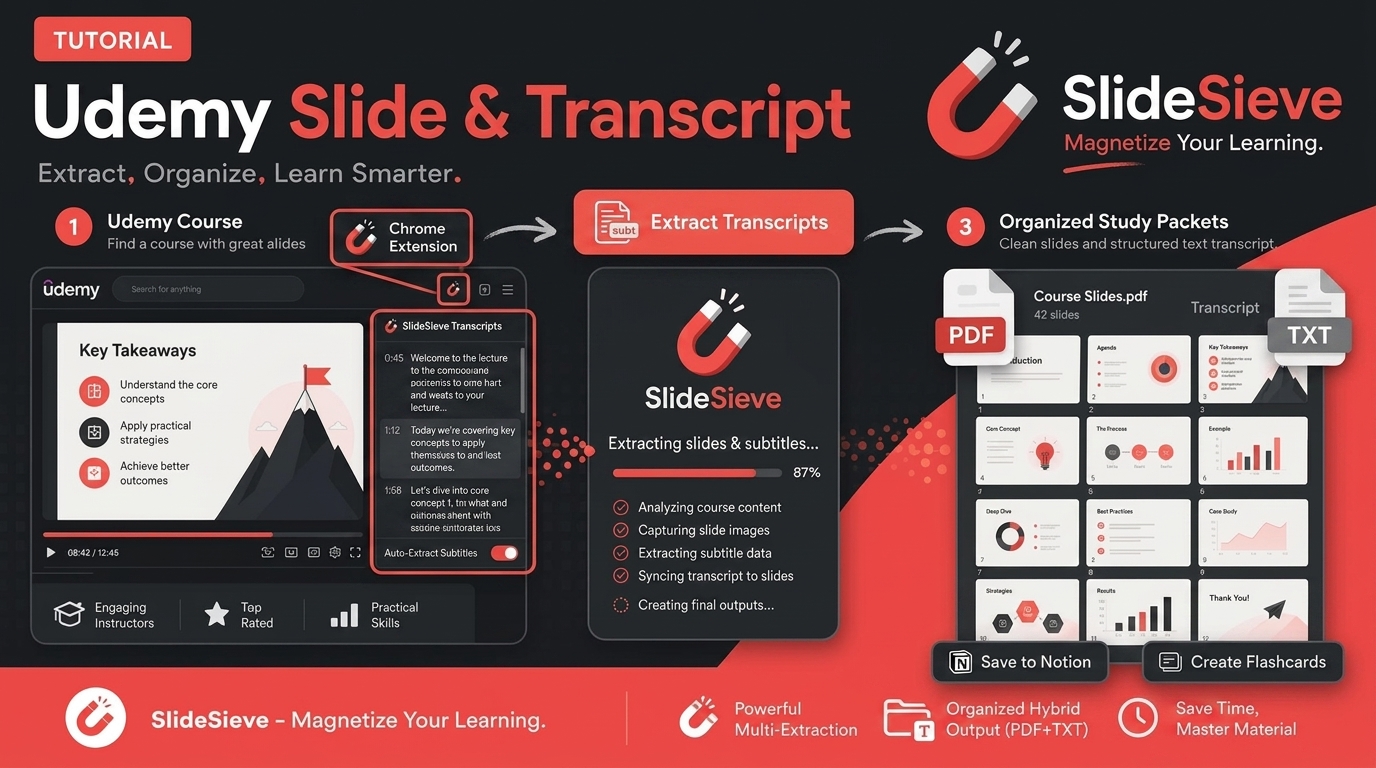
How to Save Course Transcripts with SlideSieve
Learn how to automatically extract and download transcripts from Coursera, Udemy, YouTube, and DeepLearning.AI videos using SlideSieve.
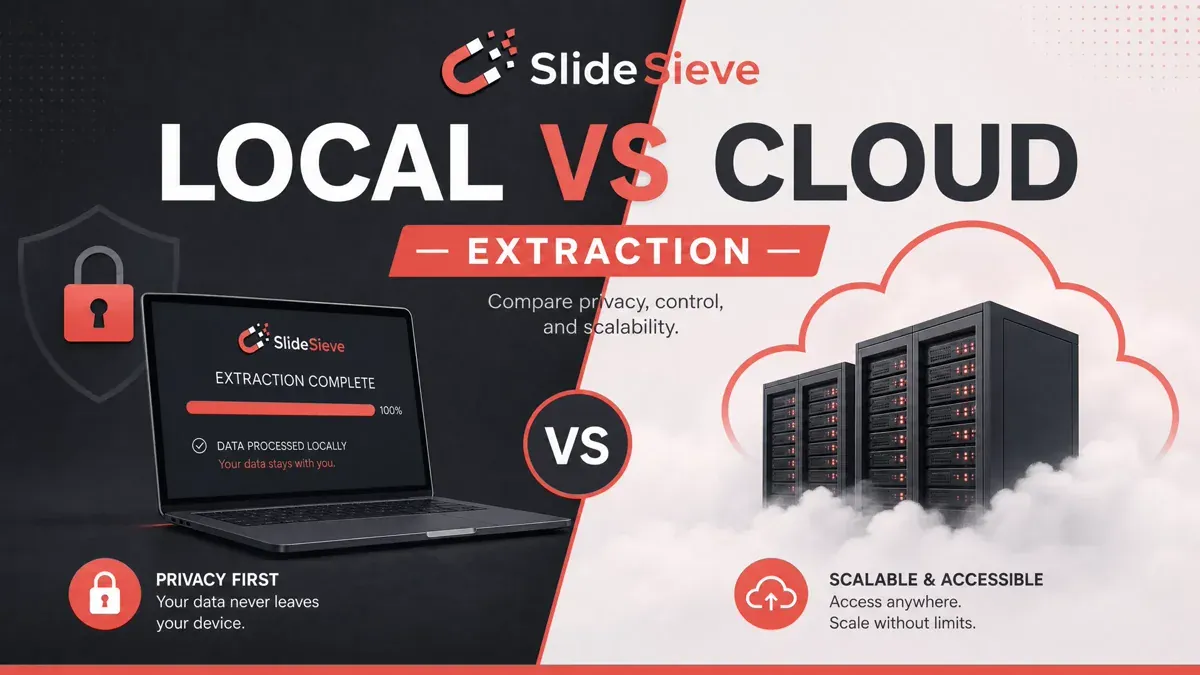
Local Browser Extraction vs. Cloud Upload Services: Which is Better for Extracting Slides?
A deep dive into why local, browser-based slide extraction is safer, faster, and more cost-effective than cloud-based video summarizers.