
Welcome to SlideSieve! 🎉
You're ready to extract clean, high-quality slides from your course videos. Here is a quick guide on how to get the most out of the extension.
Pin the Extension
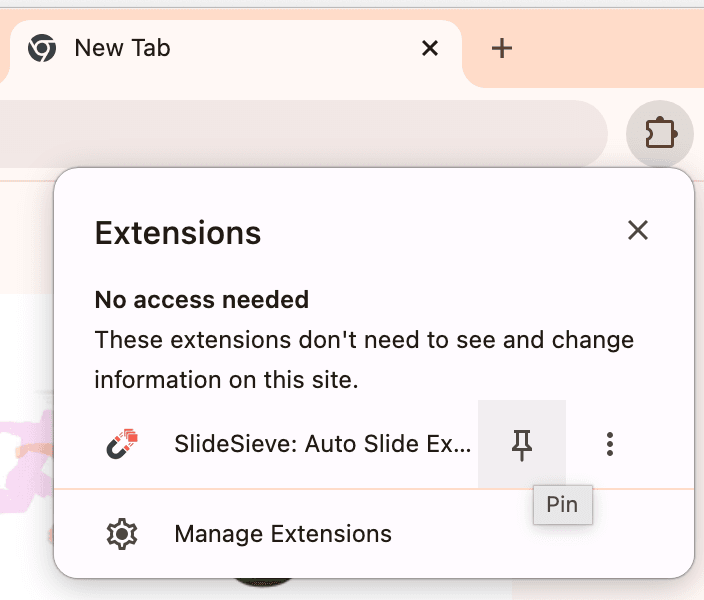
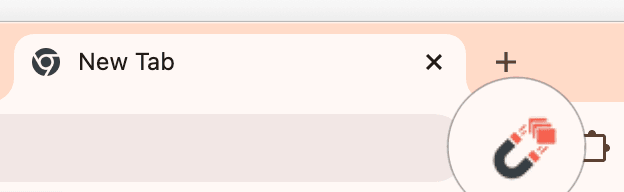
Click the extensions icon  in Chrome, find
  SlideSieve, and click the pin icon . This ensures you can open the side panel instantly.
SlideSieve at a Glance
A powerful combination of a floating video toolbar and a comprehensive side panel. Capture, organize, and export your course slides in seconds.
How to Use SlideSieve
Follow this simple workflow to start extracting high-quality slides.
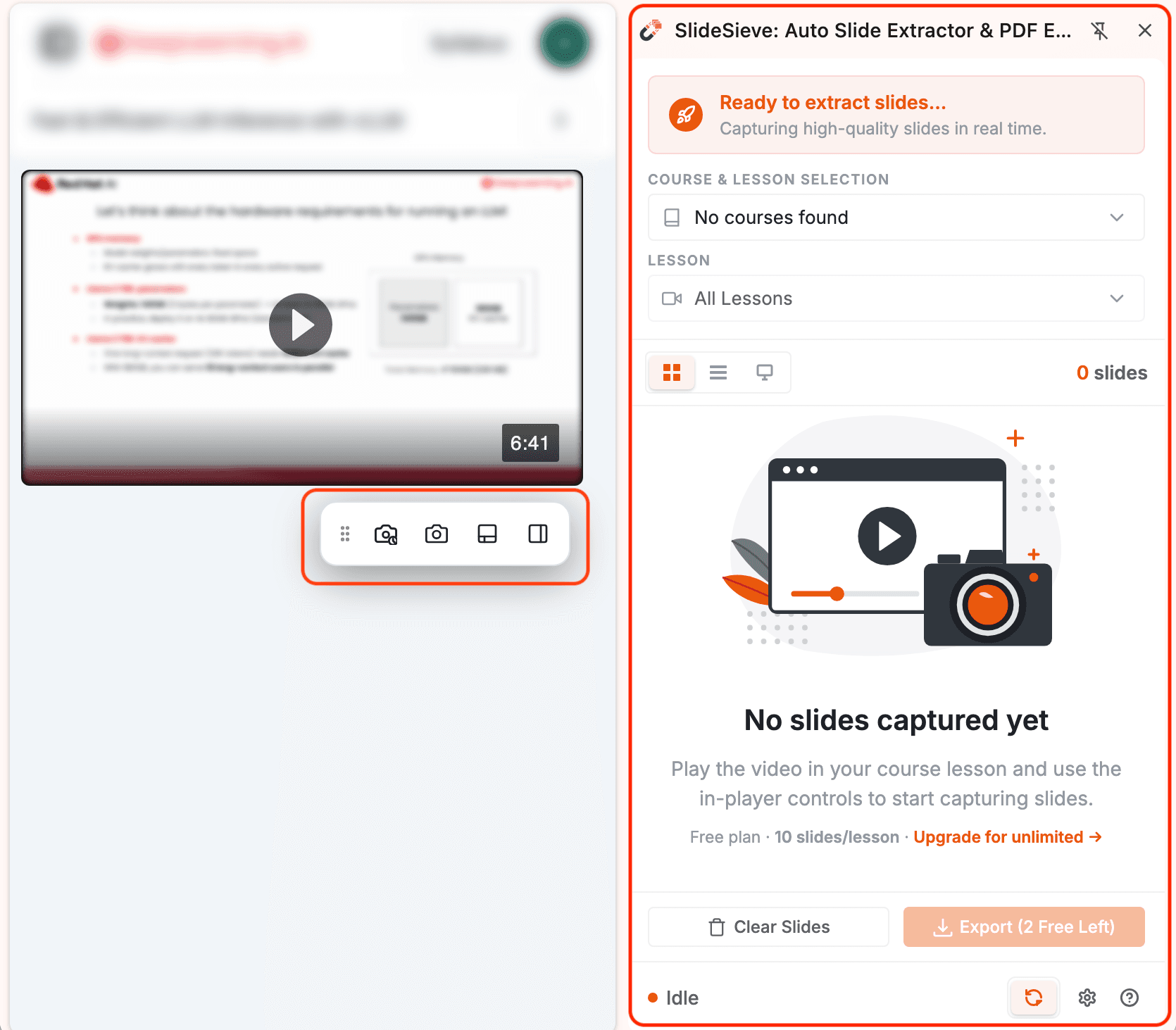
Find the floating toolbar
Whenever you play a supported video, a floating SlideSieve Toolbar automatically appears directly below the video player. You can snap it to the bottom of the page, or drag it anywhere you like using the drag handle on the left.
Drag Handle
Click and drag to move the floating toolbar anywhere on your screen.
Auto-Capture
Automatically detects and extracts slides while the video plays.
Manual Snap
Instantly capture the current video frame as a slide.
Layout Toggle
Snap the toolbar to the bottom of the page or let it float.
Toggle Side Panel
Open or close the side panel to view captured slides.
Capture Your Slides
Click the Auto-Capture icon (or press Ctrl+Shift+8) and play the course video to start extracting slides automatically. You can also manually snap individual frames using the manual snap button.
To stop auto-capturing, simply click the Auto-Capture icon again (or press Ctrl+Shift+8), or click the Stop Extracting button in the side panel footer.

Review captured slides
Click the pinned extension icon or the side panel button on the toolbar to open the Side Panel. Slides captured will appear here automatically. Review everything the extension has extracted for the current lesson, and switch between Grid, List, and Presentation views to organize and present your slides perfectly. You can remove single slides by clicking their remove button, or clear all slides by clicking the Clear Slides button.
Settings
Access advanced settings (like theme and capture tuning) via the gear icon at the bottom of the side panel.
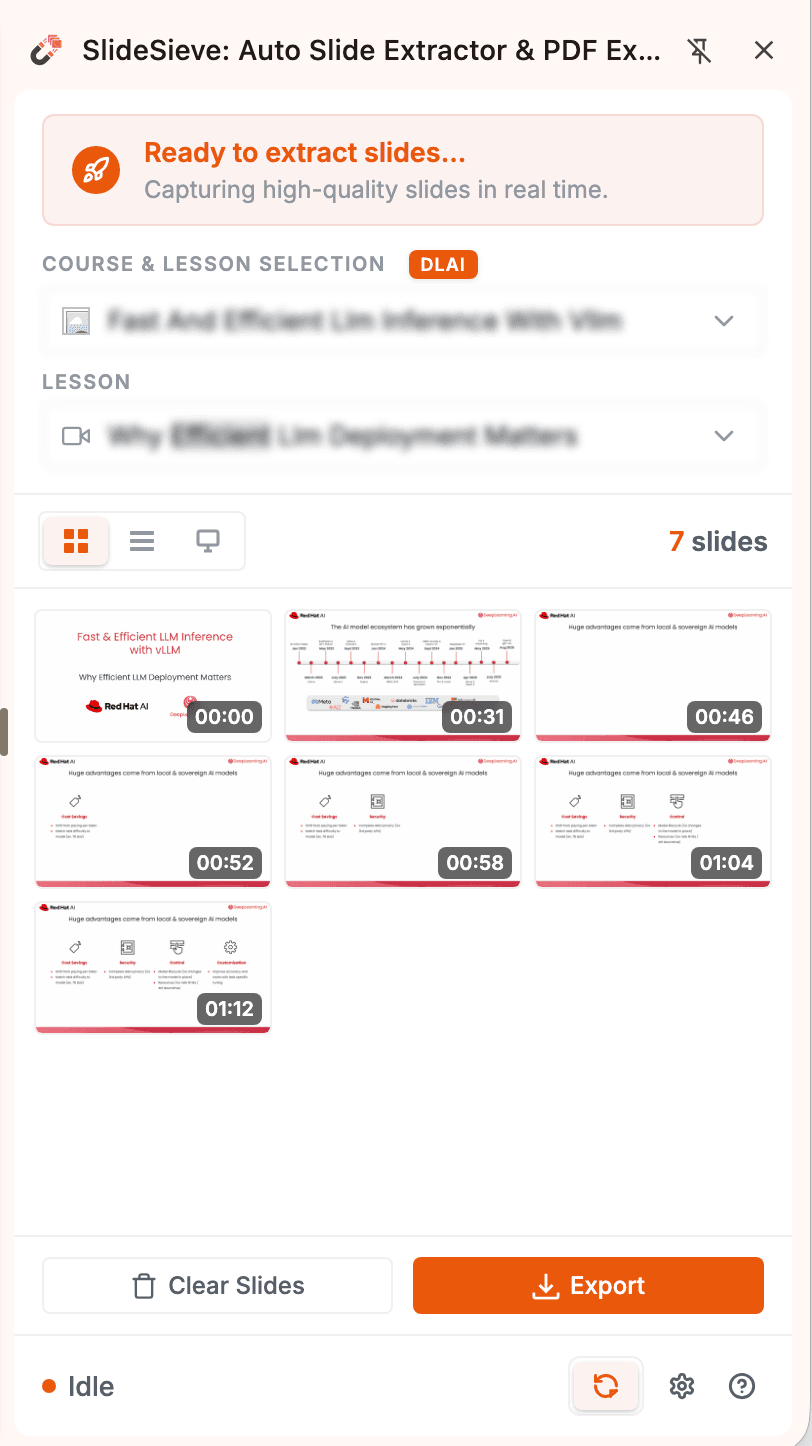
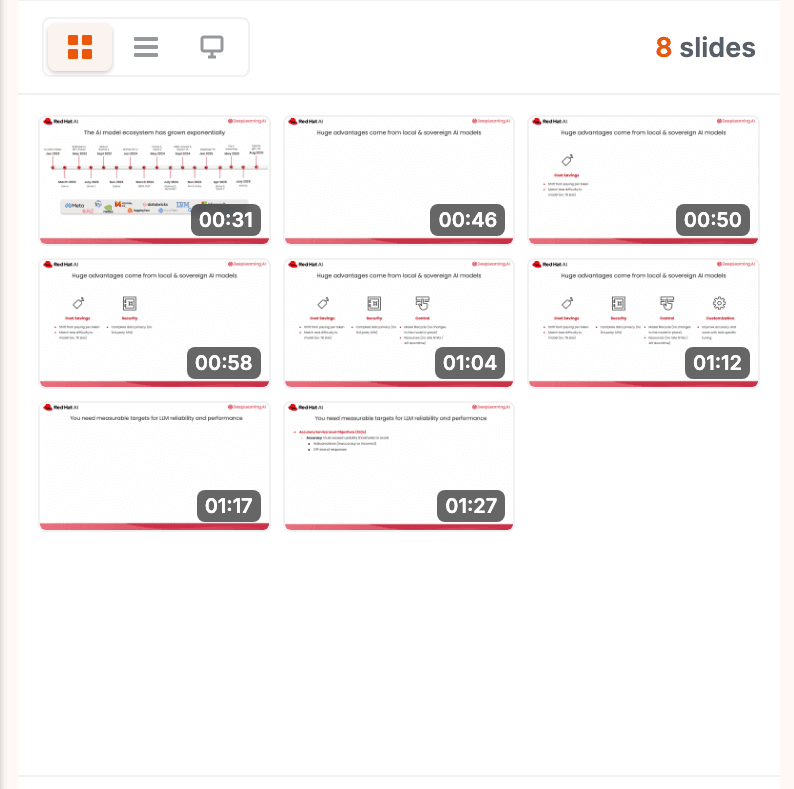 Grid View
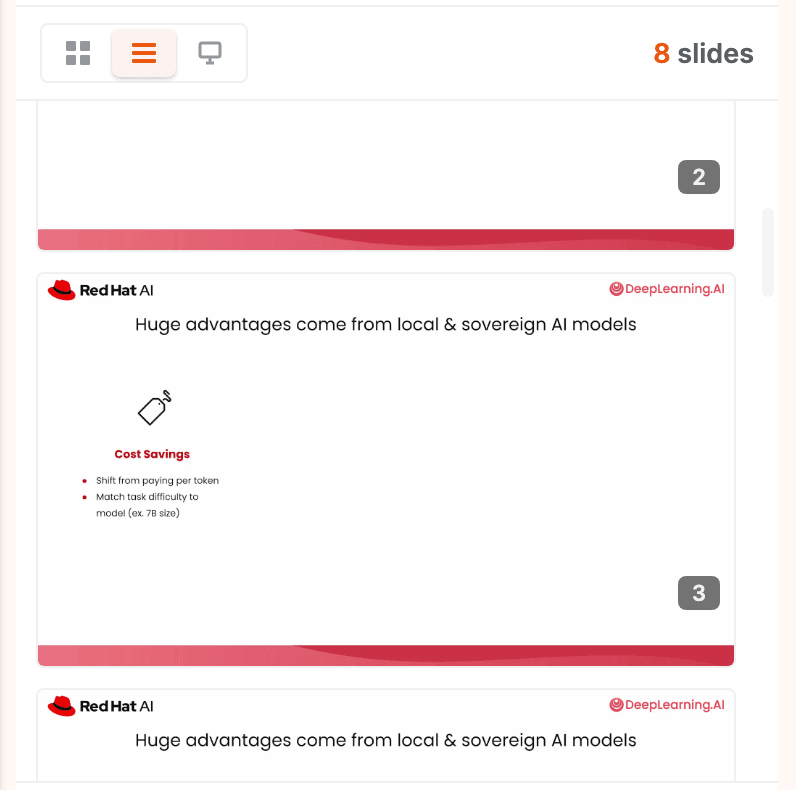 List View
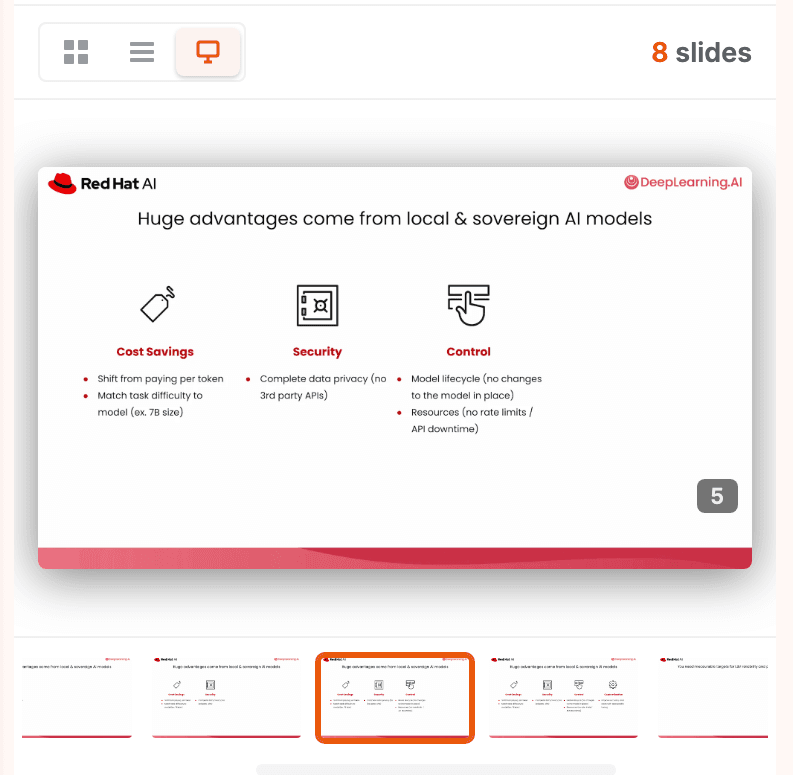 Presentation View
Manage Your Slides
Curate your extracted slide deck. You can easily remove individual slides by hovering over them and clicking the remove icon, or use the bottom controls to clear all slides from the current lesson.
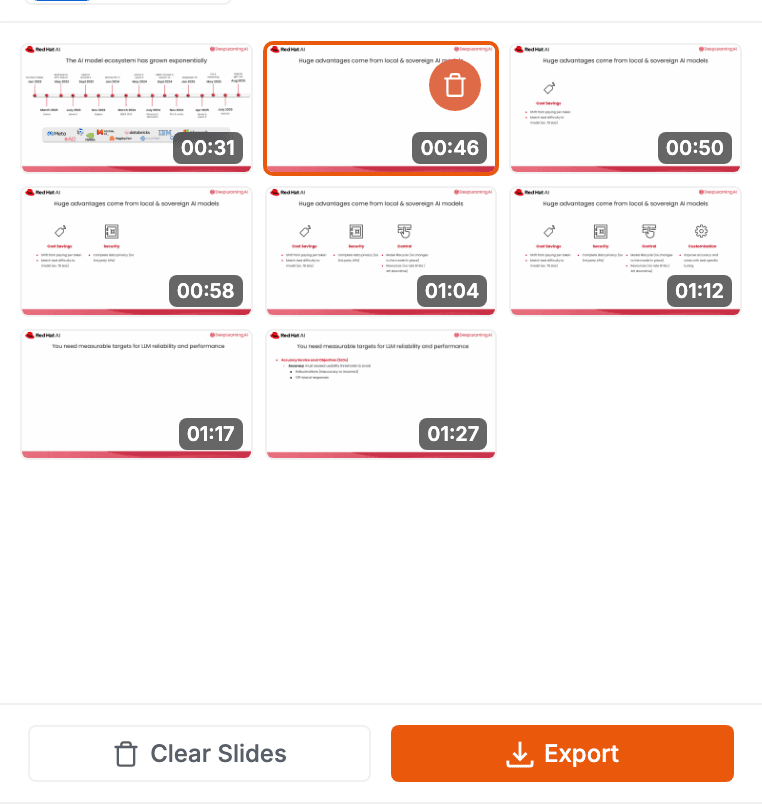
Export Your Slides as PDF
Once you're happy with the captured slides, click the Export button at the bottom of the side panel to instantly generate and download a clean PDF document.